• Skip to primary navigation
  • Skip to main content
  • Skip to footer

Teaching in Higher Ed

  • Podcast
  • Blog
  • SPEAKING
  • Media
  • Recommendations
  • About
  • Contact

Find the right reference manager

By Bonni Stachowiak | January 6, 2015 | | XFacebookLinkedInEmail

Anyone who has worked with a lengthy document knows how essential a reference manager can be in your research and writing process.

I decided a couple of years ago to begin requiring the use of a references manager in most of my upper division courses. This past year, I decided to include my introduction to business course in those same requirements, though there were plenty of times throughout the semester when I questioned whether or not the headaches were worth the payoff.

I'm going to describe three potential ways to get your students using some type of reference manager, or at least a tool to help them cite their sources more effectively.

The order I'll present the tools in will be from least to most robust, in terms of overall features.

Google Docs Research Tool
researchtool

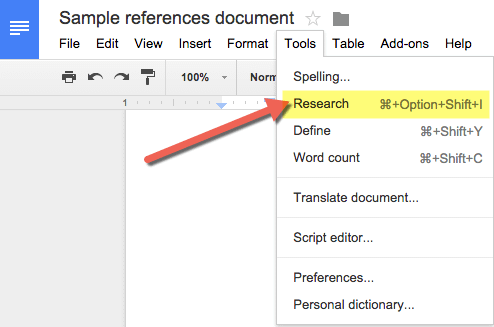
The research tool from Google allows you to bring up a search bar on the right-hand side of your Google doc and then insert a footnote in various formats to reference the source.

I was unable to locate any way to do proper APA citations, after searching under each option on the tool and in consulting their help files on the Google research tool.

Pros

  • Many students use Google docs in their writing, and it is built right-in to the word processor
  • It is easy to use and gets students thinking about supporting their writing with research, since it is so present on the screen as they are working
  • There is also an image search built-in that allows for the search to be refined to only those images that can be used legally

Cons

  • There doesn't appear to be a way to cite in APA format within the main body text (only footnotes available)
  • No way of saving, tagging, or adding notes to research (seems to have been built under the assumption that the research phase and the writing phase will take place at the same time)
  • It is built in to Google docs, which is nowhere near as feature-rich of a Word Processor as Microsoft Word

Another related option
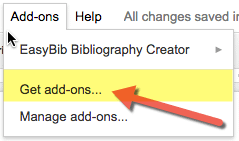
addinsAs I was digging around in Google docs for this post, I saw that there is a free EasyBib add-in that gives another way of creating a bibliography in a Google doc.

However, to do in-text citations and truly manage your sources, you need to pay for the service, which starts at around $4/month.

RefMe app
refme

While students certainly are big into using Google docs, they are even more into going mobile.

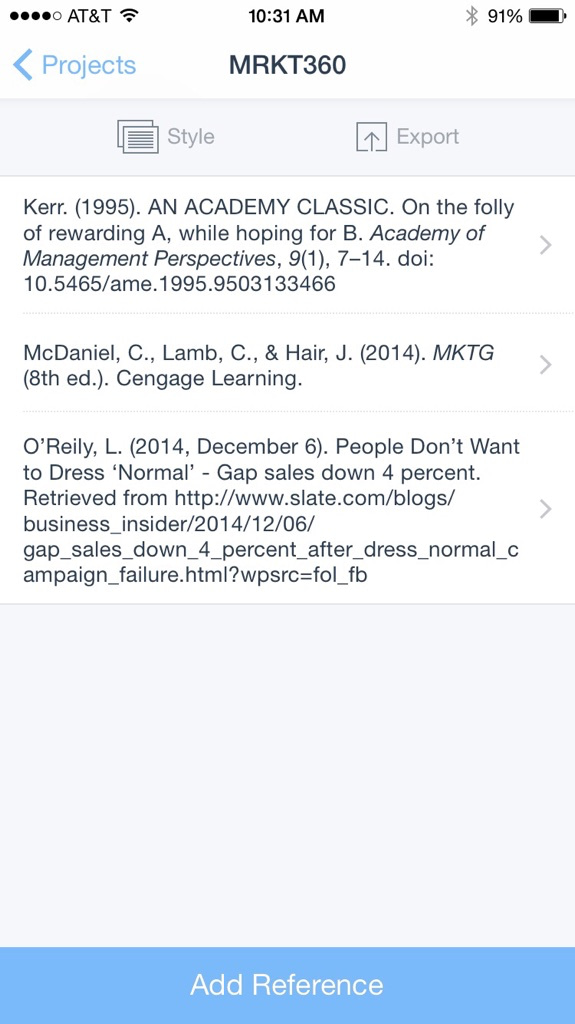
The RefMe app allows users to search for and save references in a variety of styles (the app states over 6,000 syltes are available to use).

Once you have searched for and saved a list of references, you can export it in the following ways on the mobile app:

  • Copy to clipboard
  • Email
  • Evernote

The RefMe website allows for exporting to Microsoft Word and other formats beyond what the mobile app offers.

Pros

  • Built from the ground up to be mobile-friendly
  • App is intuitive and simple
  • Syncing between the app and the website is seamless
  • Build individual citations (including optional page numbers) and copy/paste into whatever Word Processor you are using

Cons

  • No ability to cite within text and then build a list of references off of what has been cited in a document
  • No tagging or adding notes to sources
  • Are over 6,000 citation styles really enough for the average user? (kidding…)

 Zotero
zoterodemo

Let me start by letting the cat out of the bag. Zotero is my tool of choice as a researcher. It is also, reluctantly, still the tool I require my students to use (from undergraduates up to doctoral students).

If you want a short demo that shows the power of what Zotero can do, check this one out I made a few years ago.

I found that the demo wasn't quite enough to get my students going, so I made this Zotero video series that walks you through how to get up and running.

Pros

  • Cite sources throughout a document and then press one button; it auto-creates a list of references from everything that was cited in the document
  • Once set up, easy to use and fast
  • Powerful organization, including tagging, notes and robust search
  • Simple to add citations while in the midst of research, with the press of one button on your browser
  • Group collaboration is powerful and easy, once Zotero gets set up and groups are formed using their website

Cons

  • No intuitive mobile app (there are some that developers have created, but they are cumbersome and not anywhere near as easy as RefMe)
  • The multiple steps it takes to get set up using Zotero allow room for mistakes to be made and/or for students to perceive that they won't be able to make it work
  • The variables involved in individual student's computer and application systems makes for quite a headache in terms of creating instructions for them to follow, as well as in troubleshooting any issues they have

Despite the cons listed above, over 95% of the time that students have trouble with Zotero, it is because they didn't follow the directions and not because of anything that is wrong with the tool, itself.

That being said, Zotero is not for the faint at heart and for those who aren't up for digging in to help when students experience difficulties with it.

I wish I could find a references manager that was as powerful as Zotero, but didn't require all the steps it takes to set up and also had a good mobile app.

Perhaps there's something out there, but I just haven't found it yet.

[reminder]What is your preferred references manager? What are its pros and cons?[/reminder]

Filed Under: Educational Technology Tagged With: edtech, reference, research, writing, zotero

Seeing the gorillas through the trees

By Bonni Stachowiak | December 30, 2014 | | XFacebookLinkedInEmail

Our friends, Sandie and Jean came over for dinner last night. Jean was doing some recording with Dave for the Carnegie Coach podcast, while Sandie and I hung out with the kids.

attention-blindness

Our son, Luke, was pretty antsy from an exciting day with his Grandparents, who are visiting. A book seemed in order, to calm him down and possibly also to entertain Sandie.

I had recently bought him the book Wangari’s Trees of Peace: A True Story from Africa, by Jeanette Winter. Here’s the book’s plot, from the publisher’s description:

This true story of Wangari Maathai, environmentalist and winner of the Nobel Peace Prize, is a shining example of how one woman's passion, vision, and determination inspired great change.

The author makes the story accessible to kids as she describes Wangari's opposition to the trees that were cut down in Kenya, to make room for buildings.

An entirely different meaning

Since this was not the first time Luke was hearing the story, I asked him questions, as we went along, about what was about to happen next. I inquired as to what had happened to all the beautiful green trees in Kenya, as we flipped to a page with lots of tree trunks, but no lush green branches.

Someone trimmed them,” Luke replied.

He was using the most commonly-used vocabulary around here for what happens to trees. It’s actually quite an exhilarating event, for an almost three year-old.

Landscapers from our community come around every few months and trim the trees.

I found out that we have nearly double the amount of trees where we live than they do in Central Park. The tree trimmers climb up on tall ladders and make quite a ruckus.

It’s got everything that Luke loves in life: noise, green, climbing, and people.

Of course, in Kenya, they weren’t doing trimming. Their work was not designed to make the trees more beautiful and healthy, but to destroy them. They had cut down all the trees, to make room for new construction.

I didn’t correct Luke’s use of the word trimming, but replaced it with the accurate word as I repeated back to him mostly what I had heard him say.

I responded to Luke that, “Yes, they had cut down the trees and now the green was gone, and so were the birds who had made their homes in the trees.”

After a few times of me using the word “cutting,” he seemed to be able to distinguish between trimming and chopping down trees. I never would have realized that there was any confusion, if I hadn’t been asking questions along the way.

This happens to us all the time in the classroom, though the potential for us to completely miss it is significant.

Attention blindness

Dr. Cathy Davidson, my guest on episode 28, shared with us about the experiments done on attention blindness. As Dr. Davidson describes on Inside Higher Ed:

…this famous experiment is a video of six people passing a basketball, half in white and half in black shirts.

Subjects are asked to count how many times the ball is passed only to and from those wearing black, not white, and then are quizzed on the number of passes they counted. What over half of subjects in a normal testing situation miss is a woman in a gorilla suit who walks in among the tossers for a full nine seconds, stares into the camera, and walks away.

The experiment is designed to show us what we normally cannot see about ourselves: how paying attention in a focused way requires us to shut out everything else — even a gorilla.

If you would like more information about attention blindness, including a video of Harvard’s invisible gorilla experiment, Brain Pickings did a nice job overviewing Dr. Davidson’s book and research.

When we learn about the gorilla experiment, or watch the video, having already received the spoiler, it’s easy to think that we are somehow different. That we wouldn’t have been among those who would have missed the gorilla, if we had been one of the subjects in the study.

But that kind of thinking can limit our potential and hinder our growth. Dr. Davidson has inspired me to dig in even more than usual on what I might be missing in my teaching throughout 2015.

Now what?

We read to children far better than some of us teach. Our challenge is to constantly be assessing where there may be gaps in our students’ understanding and help challenge them to apply what they are learning.

If we don’t turn the page and stop to ask them what happens next, we can all to easily be left thinking they have mastered the material in the same way that we perceive we have. I'm thankful for the Teaching in Higher Ed podcast guests who are open to exposing us to new ideas that challenge the way we have been doing things and help us reach new heights.

[reminder]What will you to doing in 2015 to look for the gorillas in your teaching?[/reminder]

Filed Under: Teaching Tagged With: attention_blindness, teaching

Pinboard.in | A great bookmarking/archiving tool

By Bonni Stachowiak | December 22, 2014 | | XFacebookLinkedInEmail

When it comes to new apps, Dave is often a bit more willing to experiment than I am.

He's gone back and forth between the two read-it-later services: Pocket and Instapaper, more times than I can count. On the other hand, I made the switch to Pocket upon his suggestion and am not willing to re-learn a new system, just to capitalize on a couple extra features that Instapaper now offers.

That's why I think I was so suspicious about making the switch to Pinboard.in.

Dave had made the move and kept recommending it to me. At first glance, I wasn't sure how it would be better than the Delicious bookmarking system that I had been using.

However, I finally decided to take the plunge when I saw that I could have Pinboard.in bookmark/pin everything both inside their system, but also on my Delicious account. There just wasn't that much to lose.

pinboard

What is Pinboard?

From their FAQs:

Pinboard is a personal archive for links you find online. You save bookmarks to the site and can find and search them later from any computer. The site can automatically import your links and tweets from a number of outside services.

Pinboard also offers an archive feature that will save a local copy of everything you bookmark in case the original page goes offline, and let you search all your bookmarks by their full text content.

How do I use Pinboard?

Pinboard is so easy to use that a person might suspect that it only has one application: to save stuff. However, I wind up using it in a number of ways, including:

As a source for inspiration and ideas for blog posts and social media interactions

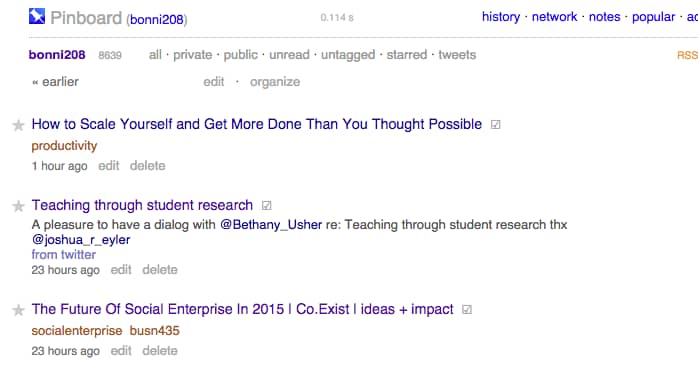
Once a week, I go onto my main Pinboard page that has all my pins in one long list down the middle. I take a look at the pins I've added in the last week and determine whether they might fit into my main blog post for the week, or if they might be good individual Tweets or Facebook links.

When people ask me for resources on a given topic

The power of Pinboard comes in when you set up a system of categories, or tags with your bookmarks. As soon as you save a bookmark, you have the option to add one or more tags at that time.

Later on, if someone asks me for my advice or resources regarding educational technology, I have an easy link to send them that has all the resources I've saved on a given topic.

https://pinboard.in/u:bonni208/t:EdTech/

twitterAs a way to capture resources from Twitter with one click or tap

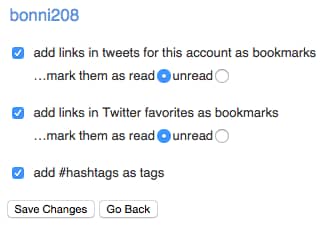
I have Pinboard set up to automatically add any Tweets that I favorite to my pins.

While that sounds like it would get crazy to try to keep all those favorites organized, it really isn't all that necessary. I have it set to use any Twitter hashtags as tags within Pinboard. In most cases, there aren't tags, though, and they just wind up going in a category called untagged.

If I were inclined, I could manually go in there and tag them all at a later time. However, I haven't found that necessary, given the robust search features in Pinboard and the nature of the kinds of things I favorite on Twitter.

Recommended steps

If you are going to take advantage of Pinboard, be sure you have:

  1. Set up your account
  2. Added the button/extension to your browser's toolbar, so you can easily add pins while you're on your computer
  3. Add the Pinboard extension/share button to your iOS device, so you can easily add pins while you'er on your iPhone/iPad

[reminder]Do you use a bookmarking/archiving tool? If so, which one is it and why is it your preferred tool?[/reminder]

Filed Under: Personal knowledge mastery Tagged With: bookmarks, pkm

How to keep course files organized

By Bonni Stachowiak | December 16, 2014 | | XFacebookLinkedInEmail

I never realized that I was “different” until my friend showed such an interest in how I organized my files and folders for my academic life.

keep-course-files-organized

My Mom was always a person with a fond appreciation for file cabinets and keeping articles of interest around various topics. She definitely passed that on to me.

Now, neither of us wants that many physical files cluttering up our home. However, since storage space on our hard drives and/or in the cloud is relatively inexpensive today, it makes sense to hang on to stuff, in case it winds up being useful in the future.

The search features on computers today are so robust, that you could argue that having a good folder structure is no longer necessary. Some time ago, I trimmed the number of folders in my email program, so that I didn't have to scroll through so many when I was looking for something via my iPhone.

However, I still find it helpful to have a basic system of folders on both email and on my hard drive to accommodate those times when search doesn't get me what I need.

Keep course files organized

In any given semester, there are two main directories (folders) that I spend most of my digital time in:

Screen Shot 2014-12-12 at 12.29.11 PM 1) Semester-specific folder

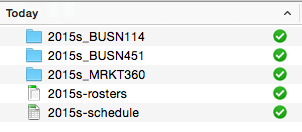
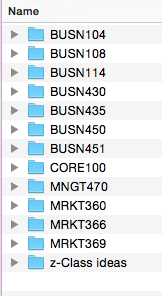
This folder contains data related to a specific semester. For 2015s, I have my class rosters (which are also sign-in sheets), my schedule (which gets printed and hung up outside my office), and a folder for students' work in each of my classes that semester.

Screen Shot 2014-12-12 at 12.29.32 PM

In addition to the schedule that hangs on my wall, I create my version of Michael Hyatt's ideal week template. This exercise enables me to see how I want to invest my time throughout the semester and identify any barriers, in advance.

I spoke about how I use the ideal week template on episode 23 of the Teaching in Higher Ed podcast.

Inside each of the semester-class folders will be the students' work, as the semester gets under way.

As I begin a new semester, I move the previous semester's folder into a directory named z-Archive. The naming convention on that folder allows for it to be listed at the bottom of my main university folder, since I don't need to access it often.

I use Dropbox for almost all my files now. They now offer 1 terabyte of data on their pro plan, so it makes good sense to invest in the service. I appreciate how I can create a link to a file with a right mouse click and choosing “share dropbox link.”

When you move a folder (to an archive folder, for example), any links that you provided to students for feedback are then broken. That's why I wait until a few weeks into a new semester prior to moving/archiving the folder.

Screen Shot 2014-12-12 at 12.46.32 PM 2) Course content folder

This folder has directories for each of the classes I have taught previously. The PowerPoints, exams, and other class resources are kept in the folders. The publisher materials also go here, though I tend not to keep archives, since much of the information is redundant and some of the files are quite large.

Screen Shot 2014-12-12 at 12.39.53 PMNote that the name of the courses folder begins with a 1-. Since I spend so much time in the semester-specific folder and the courses folder during a given semester, it helps to have them appear toward the top of the list of items, so I can get to them quickly.

Within the 1-courses folder is also a folder called z-Class ideas. This has course descriptions for electives that I have proposed previously, as well as class resources for courses that I was potentially going to teach down the road and needed a place to hang on to such materials.

Other tips

When people have asked me for guidance on file organization in the past, they have often shown me their current structure (or lack of it). It is hard for me not to turn in to a major back-seat driver in these cases, as they often show themselves to be working far harder than they need to…

Here are a few other suggestions for keeping your class resources organized:

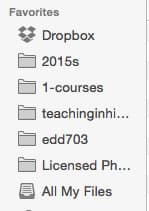
Screen Shot 2014-12-12 at 2.01.19 PMUse aliases or favorites

On the Mac, there's a favorites list over on the left-hand side of each finder window. I keep my most commonly used folders there, including my semester-specific and course-content folders.

On the PC, you might consider using aliases, which let you create a link that takes you to the folder, which you can then place wherever you want to have easy access.

Avoid punctuation in file names

It pains me when I see a file name like: assignment.smith.final.pptx

Punctuation was never meant to be any part of a file name. While some operating systems allow for punctuation better than they previously did, it still isn't a good idea. Somewhere down the line, your file could encounter a system that doesn't like punctuation in file names and you may not necessarily catch why the error is occurring right away.

Direct students on what to name their files

It can be a big help if the students are told what to name the files that they submit for your courses. Yes, they may forget, and you will still need to tweak some of them. However, most of them will remember and it will save you that much more time in your grading process.

[reminder]What techniques do you use to keep your course files organized?[/reminder]

Filed Under: Productivity Tagged With: organization, productivity

Bringing life to this time of the semester

By Bonni Stachowiak | December 9, 2014 | | XFacebookLinkedInEmail

It is a tough time of the semester. The grading pile is stacked high (in my case, virtually). Energy levels are low (my whole family just spent the last few weeks passing an illness to each person who lives in our home).

Bringing life to this time of the semester

While this is not my favorite time of the year, I do have a few techniques I use to bring a little life into my days and to keep myself plugging along.

Take regular breaks

While I don't typically adhere to a strict Pomodoro technique, I do try to remember to take a break every hour. My wrists are really bad, too, so I incorporate stretching in as often as I can into those breaks.

Use music for inspiration

NPR is a great source for finding music for every desired mood. If you need a reminder to avoid worry, Playing for Change has this great version of Don't Worry Be Happy.

If you need a good laugh, Weird Al Yankovic has a great grammar-related spoof called Word Crimes that is perfect for all the grading we're doing this time of year.

Track your progress

Sometimes it can seem like we aren't getting anywhere. I follow my Mom's advice from when I was a kid and would get overwhelmed. She recommended that I create (or revisit) a list of everything that needed to get done. Then, I could prioritize the most important item on the list and get moving toward done.

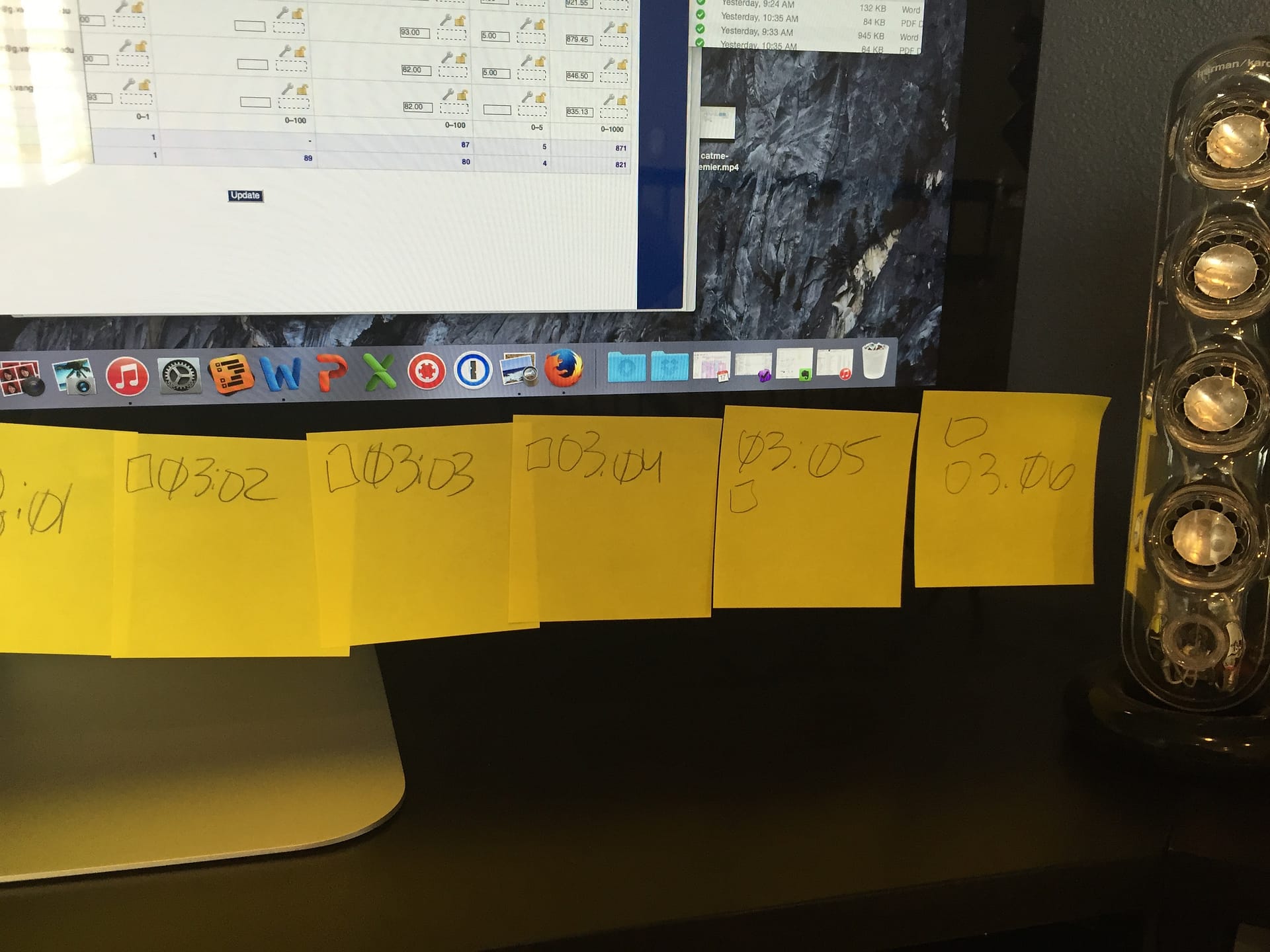
stickiesI use OmniFocus for tracking all my tasks, which really helps me feel like things won't slip through the cracks during the busier seasons (or, at least I'll know that they have been missed, if I am not able to get to everything). I also like to break tasks like “grade business plans” down into even smaller tasks and have a visual reminder on my monitor of how much further I have to go.

Each time I finish grading a business plan, I remove the sticky note from the bottom of my monitor. That process gives me a visual indication of just how far I've come and how much there is left to grade on that particular piece of the virtual pile.

Establish a reward

Walter Mischel, the researcher responsible for developing the marshmallow test, reminds us of the importance of self-discipline and delayed gratification.

I find that when the temptation to stop what I'm working on and to “eat” my marshmallow early starts to crop up, it helps to have already considered what reward I will give myself when I've accomplished the end-of-semester tasks.

As geeky as this is, I think for me it is going to be to dive in to watching videos on how to learn OmniFocus better and also to start playing with the CATME tool, introduced to us by Dr. Chrissy Spencer in episode 25.

[reminder]What will you reward yourself with, once you're done with the grading and all the other end-of-semester tasks? [/reminder]

Filed Under: Productivity Tagged With: productivity

  • « Go to Previous Page
  • Page 1
  • Interim pages omitted …
  • Page 46
  • Page 47
  • Page 48
  • Page 49
  • Page 50
  • Interim pages omitted …
  • Page 68
  • Go to Next Page »

TOOLS

  • Blog
  • Podcast
  • Community
  • Weekly Update

RESOURCES

  • Recommendations
  • EdTech Essentials Guide
  • The Productive Online Professor
  • How to Listen to Podcasts

Subscribe to Podcast

Apple PodcastsSpotifyAndroidby EmailRSSMore Subscribe Options

ABOUT

  • Bonni Stachowiak
  • Speaking + Workshops
  • Podcast FAQs
  • Media Kit
  • Lilly Conferences Partnership

CONTACT

  • Get in Touch
  • Support the Podcast
  • Sponsorship
  • Privacy Policy

CONNECT

  • LinkedIn
  • Instagram
  • RSS

CC BY-NC-SA 4.0 Teaching in Higher Ed | Designed by Anchored Design