• Skip to primary navigation
  • Skip to main content
  • Skip to footer

Teaching in Higher Ed

  • Podcast
  • Blog
  • SPEAKING
  • Media
  • Recommendations
  • About
  • Contact

Productivity

An Essential Time Saver

By Bonni Stachowiak | August 4, 2018 | | XFacebookLinkedInEmail

TextExpander: An Essential Time Saver

If you have been listening to the Teaching in Higher Ed podcast over the last few months, you have heard me talk about TextExpander (available both on the Mac and Windows). This application is one of the first programs I ever install on a new computer because it is so essential to me getting work done.

However, talking to you about TextExpander isn’t quite as powerful as getting to show it in action. That’s what I’ll do in this post. I have created three, short demos that let you peek behind the curtain to see how I use TextExpander.

You Can Still Keep a Personal Touch

Before I get to that, however, I did want to mention that my goal in saving time with TextExpander isn’t to lose the personal touch that comes from authentically-written prose. Instead, my approach is to consider that whatever time I can save through the automation that TextExpander affords me means that either I can give that much more of a personal approach as I customize boilerplate text, or that I have additional time to be able to reply to more people.

When someone comes on the podcast as a guest, I do use TextExpander to help me curate a message of gratitude to the person. There are a few basic pieces of information I always send:

  • A link to the episode’s show notes
  • Information about where the podcast is distributed (Apple Podcasts, Stitcher, etc.)
  • A link to the quote graphics from the episode

By automating that part of the email, I can spend more time letting them know the kind of response I have been getting about their episode on social media or some of my own personal reflections about our conversation.

When someone gets in touch with me asking about how to join the Teaching in Higher Ed Slack group, by having a “canned” response, I am able to get back to more people who have questions or suggestions.

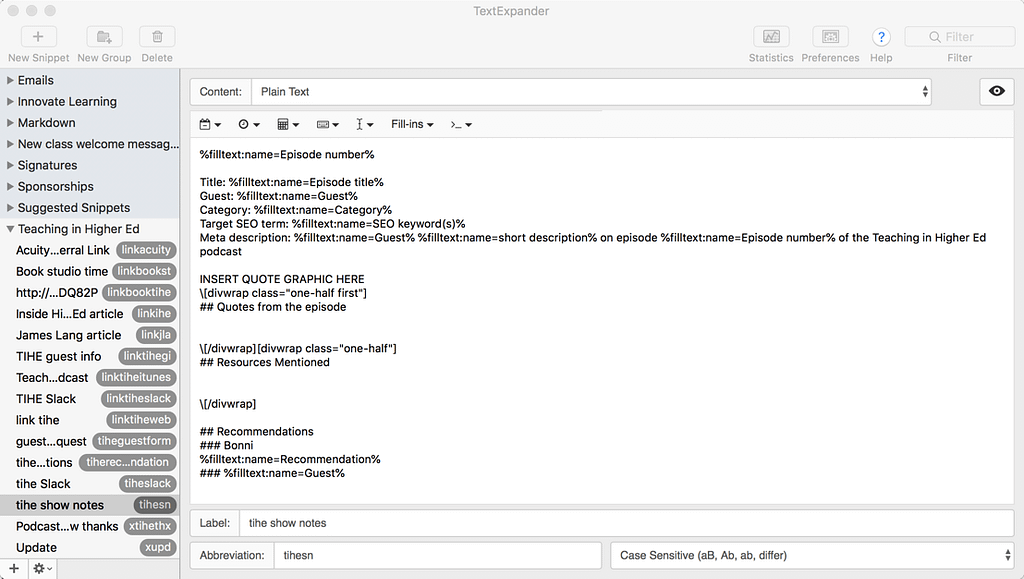
TextExpander screen
View demonstrations of TextExpander in action below

Demos

Below are three demos that show TextExpander in action.

Demo: Part 1

In this demo, I show TextExpander in action as I create new show notes for an episode. The example I show uses fill-in snippets, where I can customize the text before it gets entered. TextExpander has a video showing how easy fill-in snippets are to create.

Demo: Part 2

In this demo, I give even more examples of TextExpander in action.

Demo: Part 3

In this final demo, I show how to add new snippets to TextExpander and how easy it is to make it work for you.

Purchase TextExpander

Get 20% off your first year of TextExpander and a 30 day free trial (select Teaching in Higher Ed from the dropdown menu os where did you hear about TextExpander?)

Other TextExpander Resources

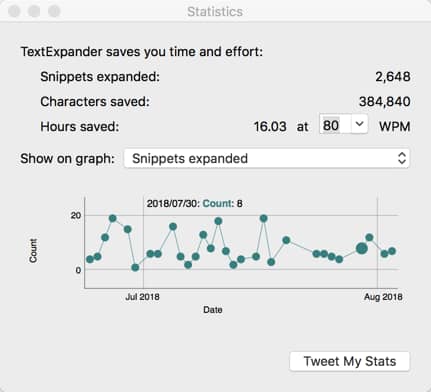
I’ve only skimmed the surface here, as there are so many ways that TextExpander can save us time and improve our workflows. The more I learn about TextExpander, the more time it saves me (and lets me know with periodic reports on my TextExpander stats).

TextExpander statistics
My monthly TextExpander statistics

Below are some links to articles that extend the benefits of TextExpander in higher education.

  • An Introduction to Text Expansion, by Hanna Peacock on Inside Higher Ed
  • TextExpander video: Introduction to TextExpander
  • TextExpander video: TextExpander on Windows
  • Download existing collections of TextExpander snippets
  • TextExpander video: Sharing snippets
  • Jason Jones shares his uses of TextExpander on The Chronicle’s ProfHacker
  • Using Text Expansion Software in Your Workflow by Jason Heppler on Inside Higher Ed
  • Ryan Cordell shares his uses of TextExpander on The Chronicles ProfHacker
  • I share about TextExpander and other tools that contribute to Frictionless Systems
  • The Sweet Setup shares TextExpander as one of the “Apps We Love”

This post is a sponsored post. I am grateful to TextExpander for helping to support the Teaching in Higher Ed podcast. However, I have been sharing about the benefits of using TextExpander on the podcast and in the blog long before they provided any financial support.

Filed Under: Productivity

Four Approaches for When Stuff Happens

By Bonni Stachowiak | February 27, 2018 | | XFacebookLinkedInEmail

Photo by James Pond on Unsplash

About a year ago, I recorded an episode of the Teaching in Higher Ed podcast that I titled:

When Things Will Just Have to Do (Episode 145)

Similar themes are recurring this year, though I suppose in nowhere near as drastic of a case. I have been dealing with frustrating health challenges (dental work, anyone?), but ones that aren't likely to have any life-altering consequences. Still, my already-packed life resists being “forced” to tap into flexibility. Here are the ways I am attempting to navigate these challenges.

Get Perspective

I feel guilty writing about my dental woes, especially after finishing Everything Happens for a Reason: And Other Lies I've Loved, by Kate Bowler. The author teaches at Duke's Divinity School and researches what is known as the prosperity gospel. She shares the story of her stage IV colon cancer diagnosis and how it impacted her friendships and faith. This book had me laughing and crying from page to page.

Play Music

I have been enjoying exploring NPR Music's Tiny Desk Concert series on YouTube. I am a bit late to the party, but I think the gig is that they all play a concert surrounding a desk somehow. I started thinking it was the desks that were small (they don't seem to be), but I think it is the concerts that are supposed to be small. You can hear The Roots singing Ain't it Fair, Wyclef Jean singing Borrowed Time, and a favorite of mine – Jamila Woods singing Black Girl Soldier and Holy.

Take Stock

My weekly reviews and current projects list have been vital to not having too much fall through the cracks (at least without me knowing about it, in advance and making a conscious decision to let something slip). I write more about the tools I use in my weekly reviews on a post about managing during a stressful season from 2017. In that post, I also link to many of Robert Talbert's blogs about GTD (based on David Allen's book: Getting Things Done).

Celebrate Progress

Another tool I am grateful to be able to leverage is my “trimesterly” goals (based on Robert Talbert's Trimesterly Review process). Instead of being discouraged that I am not as productive as I prefer to be, I can look back at a longer duration and recognize that a lot more has happened than I realize. It is easy to get caught up on a single week's progress, instead of viewing achievement using a broader lens.

Let it Go

Our daughter would be disappointed if I didn't include the name of her absolute favorite song here. I have been in some pain, lately. When my body has had enough, it is showing up in my not being able to concentrate as long as I usually can. When that happens, I tell myself to let it go and to switch gears to something not as mentally taxing. Here are a few items I found on some of these less-structured browsing sessions:

  1. Five Ways to Use PowerPoint to Edit Images
  2. A Bill of Rights and Principles for Learning in the Digital Age
  3. 4 Questions to Help You Start a Successful Blog
  4. Anchor Turns Itself into a One-Stop Podcast Creation App

After a conversation about the recent Parkland shooting in one of my classes, a student shared this video entitled “Evan,” a gun violence video that is impossible to say much about without ruining it.

Your Turn

What advice do you have for those times when stuff happens? 

Filed Under: Productivity

Lessons From My Email Emergency

By Bonni Stachowiak | February 6, 2018 | | XFacebookLinkedInEmail

This past week, I have been experiencing what can best be described as an email emergency. Somehow, all my email folders got erased and I went through processing what life would be like to lose all the emails I had ever been sent using one of my two primary email addresses.

The mostly happy news is that it looks like I am going to emerge out of this with my emails in place. However, I won’t be able to get the multitudes of hours back into my life that I have spent on this project.

Less is More – When it Comes to Email Folders

I had over 35 different folders and subfolders in my email storage structure. As I worked on moving my emails over from the backups, I decided not to replicate the same structure this time around. Instead, I kept it as lean as possible, knowing that search has come such a long way and I’m likely to be able to find what I need from that method of retrieval.

My folder hierarchy is now as follows:

  • Archive
  • Encouragement
  • Family
  • Humor
  • Innovate Learning
  • Personal
  • Purchases
  • Reference
  • Vanguard

There are some people who recommend not having any folders at all, except for archive. If you use an email app on your smartphone, you can likely swipe to one side and automatically send an email right into the archive folder. You can search by sender, receiver, subject line, or even in the contents of the emails, in most email clients.

I think I will probably trim down the number of folders I have in my teaching/work email, too. I like to have a folder for the current semester, in order to zero in on student emails that have come in related to classes. After a semester ends, I move all emails over to the archive folder.

I have a folder directly related to my role of Director of Teaching Excellence and Digital Pedagogy – for those times when I need to get a sense of what I have been focused on in recent weeks. But many of my other folders are excessive and I have far too many subfolders.

When I finish my work-related email clean up, it will look something like this:

  • Archive
  • 1-teaching-excellence-and-digital-pedagogy
  • 2018s
  • Departments
  • Encouragement
  • Personal
  • Research

I can feel myself resisting this change, even as I type it up. Since I was “forced” to in dealing with my email emergency on my personal account, it made it easier to “rip the band-aid off” in that case. I can now see how much more streamlined things are going to be, so hopefully I can remember that when I get to making the change on my work account.

Backups are Essential

Dave and I use a service called FastMail for our Innovate Learning emails. We pay extra for backups – and this past week’s adventures are a testament to why. If I hadn’t had a backup plan with them, I would have lost most of my emails from many years of email use.

Their response time has been less-than-ideal regarding my email emergency. However, the backups of my emails were well worth the money we paid and somewhat worked as expected.

Sanebox is a Game Changer

Another service I have had to live without, as I get this all sorted out, is SaneBox. It sorts through my emails and leaves only the most essential ones in my primary inbox. I have been lost without it. You can receive a free SaneBox trial if you want to experience the sanity that only SaneBox can deliver.

Email Clients are Not Task Managers

The biggest change in how I have needed to work this past week, while all this gets sorted out, involves leaving emails in my inbox for longer than normal. I typically keep with a “touch it once” approach to email. When I first look at an email, I read it for “action” – is there anything that requires action buried somewhere within this message?

If the answer is yes, and it only is going to take me two minutes or less to perform that action, I take care of it right then. If it will take more than two minutes, the email is sent over to my task manager (OmniFocus) and can then be prioritized amongst all the other things I have on my plate.

When we don’t do this, we allow others to dictate to us what our priorities should be, instead of allowing their requests to be considered in the context of the other things that are important to accomplish.

Speaking of task managers, The Sweet Set up just did a nice write up of their favorite task managers, along with recommending Things3 as their top pick.

Next Steps

I have recorded an episode of the Teaching in Higher Ed podcast that describes my process for managing email in detail.

  • Getting to zero inbox

Other episodes related to productivity include:

  • Get More Meaningful Work Done
  • Teaching in the Digital Age
  • Strength Through Habits
  • Get It Together
  • The power of checklists
  • The weekly review
  • Approaches to calendar management in higher ed
  • What to do before you act on all you've captured
  • Practical productivity in academia
  • Lower your stress with a better approach to capture

Preorder The Productive Online Professor

I’m excited to announce that preorders for my new book: The Productive Online Professor are available now. The book discusses even more methods for managing email more productively, along with plenty of other topics to help us have more peace in our lives, so we can be even more present for our students. Please consider pre-ordering a copy to support the launch of the book, not to mention your own potential productivity boost.

Filed Under: Productivity

Frictionless Systems

By Bonni Stachowiak | January 16, 2018 | | XFacebookLinkedInEmail

Frictionless Systems

This past week, I began emerging from a bout with the flu. Even though I still have a bit of a cough and a runny nose, it has felt delightful just to be out of bed and returning to some sort of normalcy.

Frictionless Systems

One thing I was grateful for during this season was the productivity systems I have in place. I was able to determine what I had fallen behind on and how to make adaptations to priorities I had been unable to focus on.

Weekly Reviews

I have written and podcasted before about the importance of weekly reviews in the past.

  • The weekly review
  • When Things Will Just Have to Do – Teaching in Higher Ed
  • How to manage during a stressful season in higher education
  • Get More Meaningful Work Done – Teaching in Higher Ed
  • Sticking with Getting Things Done (GTD) – Teaching in Higher Ed
  • Getting things done gets redone

Each time I complete a weekly review, I come out of it with less stress and more of a sense of the most important things to focus on during a given week.

TextExpander (Windows, Mac, iOS)

I officially recommended TextExpander on episode 114, but have mentioned it many times in past shows and blog posts. TextExpander lets us save time by “quickly inserting snippets – email addresses, signatures, code chunks, form letters images – as you type, using a simple keyboard shortcut, or custom abbreviations. Save time without typos and copy/paste.”

I recently learned how to have TextExpander type something into the subject line of an email and enter the rest of some text into the body of an email. TextExpander also has room for customization of each “snippet.”

When I have a podcast guest scheduled, I send them a couple of emails about being on the show. This process is made much simpler with TextExpander. Each episode’s show notes are also produced that much faster using TextExpander snippets.

Ulysses (Mac/iOS)

My blog posts and podcast show notes all start in this brilliant text editing application. From their website:

A pleasant, focused writing experience combined with effective document management, fast syncing and flexible export make Ulysses the first choice for writers of all kinds.”

Sanebox (Gmail/Google, Apple iCloud, Outlook.com, Office 365, Yahoo, and many more)

Their promotional text reads: “Today is the day you take back control of your inbox.” They aren’t kidding you. I can’t imagine going back to life without SaneBox.

We prioritize your Inbox and let you know if an email didn't receive a reply.

We can also sort your Inbox, keep track of reminders and snoozed emails, rescue real email from your spam folder, upload attachments to your cloud, and more…”

Airmail (Mac, iOS)

I have found Airmail to be a wonderful way to get through email quickly. My favorite feature is the keyboard shortcuts that are available. I hardly ever have to use my trackpad when I’m moving emails into folders and processing incoming mail.

Fantastical (Mac, iOS)

I use Fantastical primarily on my Mac, though they do have an iOS app, as well. The main feature that people love about Fantastical is the ability to “use natural language to quickly create events and reminders.”

I find that I make more use of the ability to have different collections of calendars to switch between. Sometimes, I might just want to see our family members’ respective calendars and not pay attention to my work calendar at all. In other instances, I may only want to see my work and personal calendars and leave Dave’s and the kids’ calendars out of the picture.

Here’s how they describe this feature (calendar sets) on their website:

Fantastical 2 lets you quickly toggle multiple calendars on or off with a single click, so you can focus on what's more important in that moment. The days of going back and forth, clicking multiple times, just to hide and show your calendars are over.

But we didn't stop there. You can even automatically switch Calendar Sets based on your location (i.e. Work and Home). How cool is that?”

Paprika (Windows, Android, Kindle, iOS, Mac)

As some of you might have heard me talk about, I recently joined the club of those who are obsessed with the Instant Pot. It has me cooking a lot more often and taking advantage of my recipe app regularly.

Paprika “is an app that helps you organize your recipes, make meal plans, and create grocery lists. Using Paprika's built-in browser, you can save recipes from anywhere on the web.

Want to access your recipes on your phone or tablet? Our free cloud sync service allows you to seamlessly sync your data across all of your devices.”

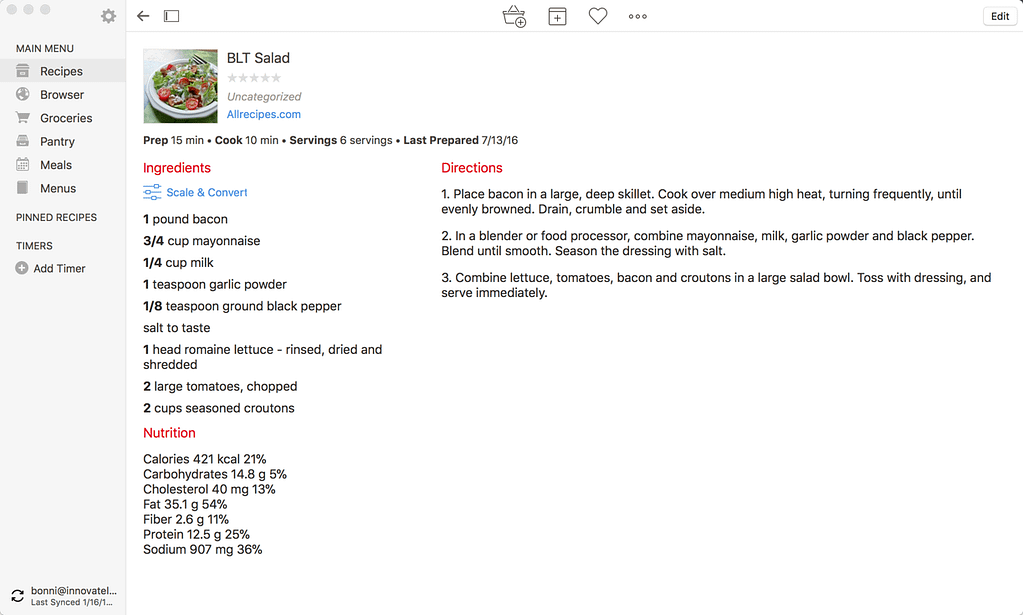
Paprika app

You can also more easily adjust the ingredients you will need, based on different desired serving sizes. You definitely can’t do that quick of a set of calculations with a cookbook, or a recipe you found on Pinterest.

When Paprika says “you can easily save recipes” on the web, it means it. You copy a link over to Paprika and it extracts the needed data from the website and adds it into all the various fields (cooking time, ingredients, instructions, etc.).

Your Turn

What apps and services are you finding are helping you create a more frictionless experience?

Thanks to everyone who replies to my calls for entertainment help on Twitter while I was sick. Let’s just say I have been watching more than my fair share of this one and this one in recent weeks.

I also am so appreciate of Nicholas Cifuentes-Goodbody who helped me on his new Research Hacking Slack channel to troubleshoot a TextExpander / Ulysses workflow issue I was having.

Filed Under: Productivity

Question Regarding Organizational Systems for Courses

By Bonni Stachowiak | January 9, 2018 | | XFacebookLinkedInEmail

Photo by Alesia Kazantceva on Unsplash

I received the following question from a listener and had more than a quick response…

I’m coming back to teaching after a semester off, and even though I’m teaching courses I’ve done before, just finding all the right documents is a challenge.

I have to check the LMS, supporting websites, my lesson plans, my post-class reflections, the syllabus, assignment documents, and potential readings in Evernote, just to figure out where I need to update dates and materials.

I inevitably make mistakes or have things out of sync. I’ve made life harder on myself by adopting different tools over the years. Are there models for managing everything, and for building courses in more modular ways, so I don’t feel like I’m always rebuilding them each semester.”

– Teaching in Higher Ed Listener

I have done this the hard way and I have done this the easy way.

The hard way, as you describe, winds up being a hodgepodge of information. I can sometimes navigate around my own “systems,” but if I ever want to share with another colleague, they often can’t make heads or tails of what I have done when teaching a class.

The easy way sometimes takes a bit more thought from the start, but pays off in spades over many years… Here is my advice on how to stay organized.

Think in Terms of Course Assets

In my 15 years of teaching in higher ed, I have gone through many-a-learning management system (LMS). That has made me tend to want to consider my computer’s data (or, in my case, the stuff I save on my preferred cloud service – Dropbox) as the primary assets for all my courses.

Then, I think of just linking to these assets from the LMS. Then, when things inevitably change, the LMS files don’t need to be updated. Since the LMS only links to the files, when the files change on my computer – anyone accessing them from the LMS from that point forward always has the latest version.

Having a mindset of course assets also helps when the duration of a course changes, as can sometimes happen at my institution. Colleagues who have to modify a 15-week course to an 8-week course have a lot easier time, if they are looking at it through a lens of re-arranging a series of course assets instead of completely reinventing the wheel.

Syllabus Example

A basic example of a course asset involves how I handle syllabi. Instead of uploading each semester’s syllabi on the LMS, I have links that go to a PDF file that is always the most current syllabus for a given course.

I explain this practice on a blog post and short video from 2013 – and am still using this approach today. This technique means that when a former student emails me to ask for a syllabus from the Spring of 2014, I can easily send the exact syllabus that I used on a specific semester, but when I copy a course shell over on our LMS into a new semester, I never have to spend time updating the syllabus file for that semester in the LMS.

PowerPoint Example

When a colleague was going to be teaching Consumer Behavior this semester and wanted to know if he could use my PowerPoint slides, I happily sent him a single link to my Dropbox folder that contains all the PPTs. To produce that link, I only had to right-click on that folder on my computer and choose copy-dropbox-link. I don’t have to go to the web or otherwise be logged into Dropbox. That option of right-clicking is always available for sharing.

I will often use the same approach for students. Depending on the class, I will either have all the PowerPoints linked to in one folder, as described in the last paragraph, or I will individually link to specific PowerPoints.

In our LMS (Canvas), I create calendar items for each of our class meeting times. There’s an option to create repeating calendar items in Canvas. Once I create all the repeating calendar items with our class meeting times, I can then go in and customize each class meeting time.

Here’s an example of a portion of the first night's schedule of this semester’s Business Ethics class in the Canvas calendar.

I can link to PPTs, or handouts, or other course assets, using this right-click Dropbox feature.

Other cloud-based services like Office 365 – OneDrive have the option to link to files and folders, but they don’t always make it as easy as Dropbox has for me.

Digital Notebook Example

Many of us also make use of some kind of a digital notebook in our teaching. Scott Self was on episode 48 and really got me thinking about how to use Evernote (but the same is true for Google Keep (which Robert Talbert is a fan of), OneNote, Bear (which Doug McKee recently raved about on Twitter), etc.) in my teaching.

Scott Self really turns Evernote into his LMS, using the actual LMS primarily for linking to Evernote and then for grading. I haven’t gone that far, but do sometimes wonder if it isn’t better than my structure.

I do use Evernote for assignment instructions often, however. Especially when I am teaching a class for the first time, or doing a significant rewrite to a class, I wind up having a lot to think about in terms of assignments. Having the instructions for an assignment in Evernote means I can keep tweaking them, without always having to login to the LMS and changing them there. Inside the assignment description on the LMS, I link over to the Evernote note that has the assignment instructions in it.

Keep Folder Structures Organized

The other approach I take that has really helped me is staying consistent with my folder structure and file name conventions. I share about this technique in the post: Keep Course Files Organized.

Simplify Your Tools

As you mentioned in your question, it is also good practice to minimize the number of educational technology tools that we have in our rotation. While that is better for students, it is also a way that we can somewhat minimize the number of possible places that our course content might reside.

I suspect this is somewhat of a relative thing, though. My idea of keeping it simple may prove to be way too many possibilities for others.

The services that I have been using quite often include:

  • Quizlet – Flashcards service that is a perfect way to do some retrieval practice
  • FlipGrid – Video service – the edtech world's answer to everything that's wrong with traditional discussion boards
  • Remind – For when I really need to quickly text everyone in my class, but don't necessarily want them replying to everyone, or having my cell number
  • Glisser – Mostly use for keynote talks, not as much in class. Wonderful polling service and then some.
  • PollEverywhere – Free account has a max of 40, so I only use in classes under 40. Terrific for peer instruction.
  • Kahoot – Mostly use for large faculty development events, not as much in class. Playful, game show format.

Avoid Mentioning Specific Dates

Whenever possible, avoid mentioning specific dates within the LMS. This may be obvious to most of you, but I encounter enough faculty who will create a quiz, for example, and have in the name or description of the quiz that it is due on November 1. The next time they go to teach the class, they have to rename their quizzes and wherever else they mentioned dates or times in the class.

The two LMS that I use with any regularity (Canvas and Blackboard) both have options for adjusting course dates to fit a new time period. When the new semester comes around, when importing the old course, you have the option to have all due dates adjusted, relatively. If something happened during week 2 of the class, it will adjust to week 2 of the new semester. It is well worth exploring this option with whoever helps you learn your LMS, as it really saves a bunch of time.

Your Turn

What advice do you have for keeping all the “stuff” for our courses more organized?

Filed Under: Productivity

  • « Go to Previous Page
  • Page 1
  • Page 2
  • Page 3
  • Page 4
  • Page 5
  • Interim pages omitted …
  • Page 11
  • Go to Next Page »

TOOLS

  • Blog
  • Podcast
  • Community
  • Weekly Update

RESOURCES

  • Recommendations
  • EdTech Essentials Guide
  • The Productive Online Professor
  • How to Listen to Podcasts

Subscribe to Podcast

Apple PodcastsSpotifyAndroidby EmailRSSMore Subscribe Options

ABOUT

  • Bonni Stachowiak
  • Speaking + Workshops
  • Podcast FAQs
  • Media Kit
  • Lilly Conferences Partnership

CONTACT

  • Get in Touch
  • Support the Podcast
  • Sponsorship
  • Privacy Policy

CONNECT

  • LinkedIn
  • Instagram
  • RSS

CC BY-NC-SA 4.0 Teaching in Higher Ed | Designed by Anchored Design