• Skip to primary navigation
  • Skip to main content
  • Skip to footer

Teaching in Higher Ed

  • Podcast
  • Blog
  • SPEAKING
  • Media
  • Recommendations
  • About
  • Contact

Resources

Essential Word Processor Features for Faculty

By Bonni Stachowiak | November 1, 2016 | | XFacebookLinkedInEmail

Word Processor

I was helping a student get prepared for a job interview yesterday. She said that half of her time at the company was going to be spent in a one-on-one interview, while the other half of the time would be devoted to an assessment of her Word and Excel skills.

She admitted to not being adept at Excel, but touted her Word skills, since she had been using it extensively in her current internship. I inquired as to whether or not she knew how to set tabs. She said she knew how to “tab over,” but didn't even know what I meant when I asked about “setting” a tab.

I have the utmost confidence in her ability to do well on the interview. She will quickly be able to learn more of the word processing and spreadsheet skills she needs and the organization she's interviewing with will have an exceptional intern.

However, it did get me thinking about the most common features in word processors that many faculty don't utilize, which ultimately make their work harder in the long run.

Here are the most essential features I recommend you leverage, when using a word processor:

Use Styles

If you've written an academic paper, or a manual of some kind, you've likely made use of headings and subheadings. However, most people don't know that you can create a style in your word processor that, when applied, automatically places that formatting on a given line/paragraph. There are some built-in styles in most word processors, which you can modify at any time to have the look-and-feel that you want.

This documentation shows you how to create styles in Microsoft Word, but you're only a search away from discovering how to use styles in whatever word processor you happen to use.

Here's a video of how to create styles in Microsoft Word from Lynda.com*.

Auto-create a Table of Contents

Once you have styles set up in your document, it becomes incredibly easy to auto-create a table of contents in your document. After you auto-create a table of contents, you can come back later and right-click and choose update, to have the table of contents reflect any changes you have made in your document since you first created it.

Here's how to auto-create a table of contents in Microsoft Word.

This video shows you how to quickly create a table of contents, and incorporates a review of applying styles, as was discussed, above.

Insert Page or Section Breaks (Versus Pressing Enter a Bunch of Times)

When you want to move down to a new page in your document, many people are tempted to accomplish this goal by pressing enter a bunch of times. The problem with this is that, if you make changes to your document down the road, your page breaks will all likely be shifted a bit and your pages will not appear as you originally desired.

Instead, if you insert a page break, or a section break – new page, you can be assured that no matter what changes you make to the document, a new page will appear where you originally intended. Section breaks are helpful if you want to have a different page numbering scheme (like roman numerals at the start of a document that then move into regular numbers), or if you want each section of a document to have a different header (like perhaps the name of the chapter or section of a document). Page breaks can be inserted and also can be deleted, if you change your mind later.

Here's the documentation on how to insert a page break in Microsoft Word.

Below is a short video on how to insert a page break in Microsoft Word.

Next Steps

Those are just three features in a word processor that have a lot of leverage, but it is really just the beginning of finding ways to save yourself time. I've found that the website Lynda.com* has plenty of video tutorials to help me work more effectively with many different technology tools. Here's a referral link* that will allow you to receive a free, 2-week trial to their service*, which I highly recommend.

Your Turn

What features do you consider most essential in getting the most out of a word processor?
Filed Under: Resources

Sharing on Utopistica About Teaching in Higher Ed

By Bonni Stachowiak | October 25, 2016 | | XFacebookLinkedInEmail

Utopistica

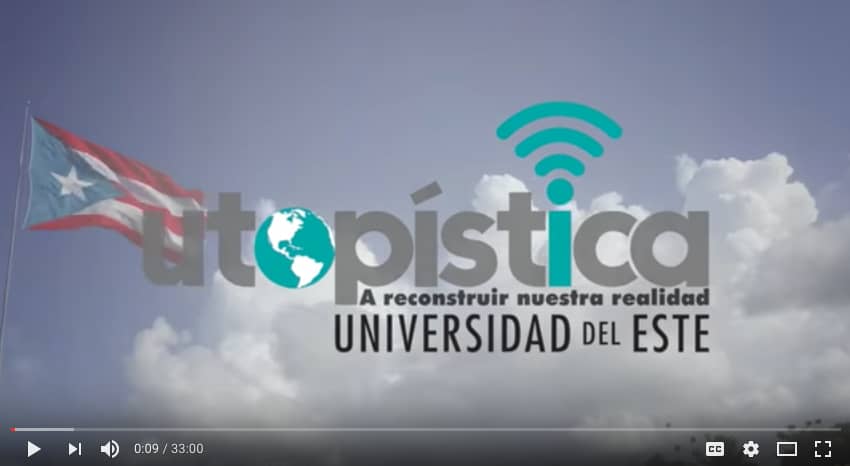
I was honored to get to speak with Lina Gomez for the Utopistica YouTube television show, from the Universidad del Este, Puerto Rico, a few weeks ago.

Utopística, programa de discusión y análisis que procura constatar la realidad como precondición para la formulación de alternativas verosímiles de futuro

Lina asked challenging questions that really got me to reflect about how my experience with Teaching in Higher Ed has changed my teaching, since June of 2014, when it launched. Their professional setup for the show made me really wish that we had a green screen in our home studio.

It looks like I'm shaking my fists in anger (or celebration?) in the still shot for the video. Instead, I'm imitating myself playing the Ellen Head's Up game (without using my iPad as a prop).

The interview is in English.

Resources Mentioned During the Interview

  • Attendance2 app
  • Retrieval Practice
  • PollEverywhere
  • Ellen’s Heads Up Game with Custom Decks
  • Research in Action Podcast
  • Plickers
  • Sticky Notes as a Teaching Tool
  • Peer Instruction episode with Peter Newbury
  • Harold Jarche: Personal Knowledge Management
  • Episode with Ken Bain
  • Episode 100: The Failure Episode
  • Inbox Zero episode
  • Gardner’s Multiple Intelligences
  • Music’s Role in Our Teaching
  • Choose Your Own Adventure Assessment
  • Episode with Linda Nelson on Specifications Grading

Paul Simon

I also reminisced about how one of my college professors got me to learn more about history by playing Paul Simon before and after classes.


Filed Under: Resources

How to be sure your students stay asleep, as you wake up

By Bonni Stachowiak | August 31, 2016 | | XFacebookLinkedInEmail

LIFE101

As most of you who have been listening to the Teaching in Higher Ed for a while already know, I'm a huge fan of podcasts.

I still chuckle when I recall this segment of This American Life when Alex Bloomberg shares about his Nielsen families fallacy, as well as the woman who received a special gift from trained monkeys.

And who could forget:

Xing

I'll never look at crossing signs the same way, again.

I've been having fun catching up with The Revisionist History Podcast (thank you, Roger Heuser). Revisiting the movie, Memento, with the Very Bad Wizards was great fun, too. I still could listen to them talk about Mr. Robot on every single episode and not be left wanting, though…

This week, something amazing happened in my podcast listening universe. Someone came out with a podcast that combines my passion for teaching with my love of audio storytelling.

Mike Wesch just launched LIFE101 – Real stories about real students seeking a real education.

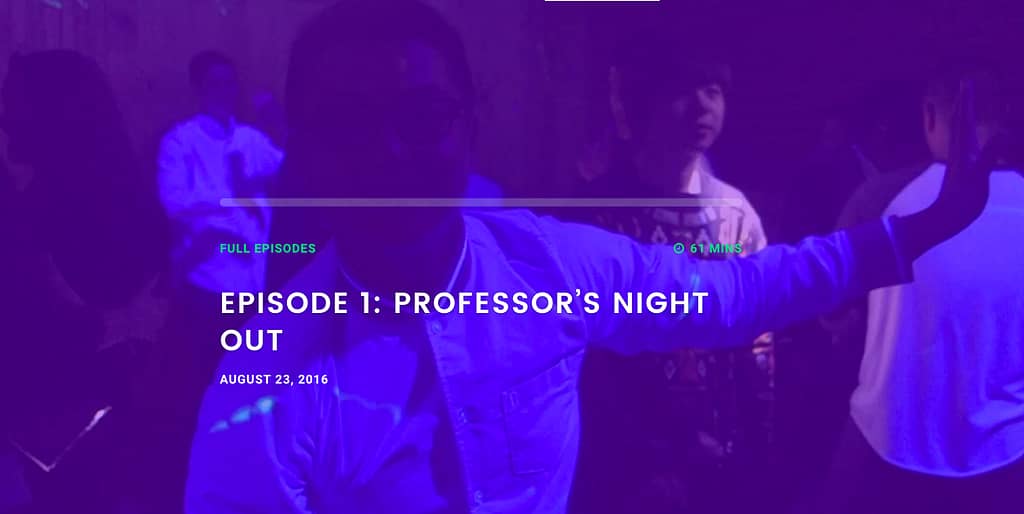
The Chronicle shares highlights from the first episode, though I won't even attempt to capture what's happening in a single headline.

When this professor got into a frat party, a line of people formed to take selfies with him: https://t.co/HKGFrHt6lg

— Chronicle (@chronicle) August 28, 2016

As I went down a delightful rabbit trail on Mike Wesch's YouTube channel, I came across his animated story called The Sleeper:

Take three minutes out of your day to watch it.

Here's what I hope you didn't miss:

  1. The moral of the story isn't that the student stopped sleeping. He didn't.
  2. Mike hasn't ever animated anything before. This video is his first attempt. He regularly puts himself into the role of learner, to have better empathy for his students and to become a more effective teacher.
  3. There's a shift that can occur when we go from thinking a student's behavior is about us (our teaching, etc.) to perceiving that just maybe it's about her… And some part of her that isn't instantly evident…
  4. The student he shares about is a real person. Not a caricature  of “kids today…”

Mike is perhaps most famous for his video entitled A Vision of Students Today… It's been viewed over 5 million times and shown in plenty of faculty workshops.

I'm looking forward to episode 2 of LIFE101 and all that will be released after that. If you listened to his first episode, I would love to read your reflections in the comments.


Filed Under: Resources

My bag is packed for a new academic year

By Bonni Stachowiak | August 23, 2016 | | XFacebookLinkedInEmail

Back to school

We just started our semester this week. My second day of classes begins tomorrow. It has been fun getting to know our students a bit and experiencing all the energy and chaos that a new academic year can bring.

Here is what I've got “packed” in my bag for the start to school:

Grit-It Organizer

I discovered the Grid-It organizer a couple of years ago and have found it extremely helpful in not leaving things behind in the classroom. One of my colleagues will tell you that as recently as yesterday, I left my adapter behind in the classroom. But, it sure doesn't happen nearly anywhere near as often as it used to… And I make sure and label everything I might potentially leave behind, to lessen the likelihood of losing items forever.

Poll Everywhere

This polling service has been my go-to tool for helping the students discover the power of retrieval practice. I get by with the free version, which allows for up to 40 anonymous respondents at one time. While I do have times in the classroom when we are device-free, there's something about starting a semester by encouraging the students to take out their phones and to engage in that manner that surprises them.

Wireless Presenter

My preference is to move about the classroom, without being stuck behind a laptop to advance my slides. While I know there are now options to advance slides on one's Apple Watch or mobile phone, I still have a preference for a wireless presenter remote. I own two different types of wireless presenters, which I like equally well. As long as they fit easily in my hand and I'm unlikely to accidentally press the button to advance a slide when I didn't intend to, they work great for me.

Apple Pencil

I've been a user of various stylus devices for decades now. Apple Pencil is hands down the best one I've ever used. I use a blended learning approach in most of my classes. I typically don't lecture in the in-person classes, but instead create what I call pencasts (which are videos of me talking about a topic, while drawing like a seven year-old, images that make the main points much more memorable). The Apple Pencil glides across the iPad screen and allows for adding color and varying the pen/pencil thickness easily.

Doceri

The app that I have found most useful for capturing / creating pencasts is Doceri. I first sketch out whatever the drawing is going to be for the pencast. Doceri is recording a video of my ever pencil stroke, for playback when adding in the audio portion. When I record myself narrating the drawing portion, I can pause the playback of my pencil strokes, as well as slow them down. I used to need to draw at the same time as talking, which I found to be incredibly difficult. Doceri and the Apple Pencil are game-changers for those who want to create pencasts.

What's “packed” in your bag for the start of your academic year? 

Filed Under: Resources

Video course trailers

By Bonni Stachowiak | May 3, 2016 | | XFacebookLinkedInEmail

Our university is moving to Canvas this summer.

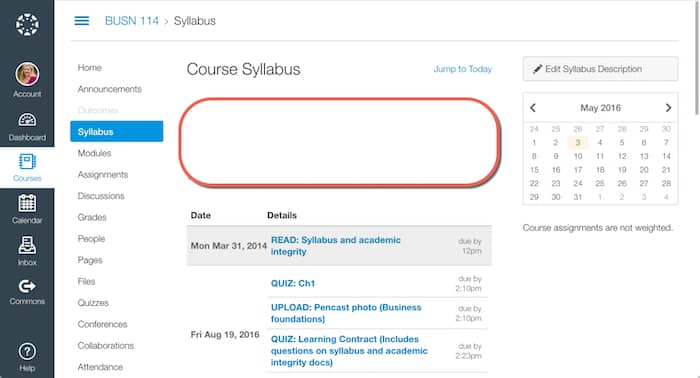
One feature I'm looking forward to utilizing is way Canvas approaches syllabi. The dates that many faculty re-create each and every semester at the bottom of their syllabi are auto-populated by whatever assignments and other date-related items you enter within the learning management system (LMS).

Above those dates is an empty space, just waiting for a professor to get creative…

2016-05-03_18-49-54

At the 2016 OLC Innovate conference, I saw a plethora of ways faculty are using either a custom course home page, or the top of the syllabus page to draw students in… This isn't specific to Canvas and would work in any learning management system (LMS).

I'm thinking I would like to use video to develop a sense of curiosity about my classes within an online syllabus.

Video course trailers

Thanks to Derek Bruff, I rediscovered what are called course trailers. These are similar to move trailers, but rather than getting students excited about a forthcoming movie, you get them excited about your class.

Duke has an introduction on how to create video course trailers, while there are plenty of other places to go for inspiration.

Harvard was one of the earliest developers of course trailers. They have a collection of trailers for their general ed courses and also from their school of government courses.

This trailer for a C.S. Lewis course is very inspiring. I suspect it could leave some faculty perceiving that the process of making a course trailer is too daunting, after watching it, however.

https://vimeo.com/album/2977329/video/47097354

Most of the trailers that I watched seemed to be geared toward attempting to persuade a potential student to take a particular course. Our department is such that getting students to enroll in my classes isn't typically the problem. Instead, I would like to have a course trailer to get them excited about what they are going to learn, once they have registered for one of my classes.

https://vimeo.com/album/2977329/video/20933798

Should any of us desire another resource for how to make a course trailer, this post from the University of Mary Washington should meet that need.

[reminder]What will you be working on over the summer to incorporate into your future classes? [/reminder]

Filed Under: Resources Tagged With: canvas, lms, syllabus, video

  • « Go to Previous Page
  • Page 1
  • Interim pages omitted …
  • Page 10
  • Page 11
  • Page 12
  • Page 13
  • Page 14
  • Interim pages omitted …
  • Page 17
  • Go to Next Page »

TOOLS

  • Blog
  • Podcast
  • Community
  • Weekly Update

RESOURCES

  • Recommendations
  • EdTech Essentials Guide
  • The Productive Online Professor
  • How to Listen to Podcasts

Subscribe to Podcast

Apple PodcastsSpotifyAndroidby EmailRSSMore Subscribe Options

ABOUT

  • Bonni Stachowiak
  • Speaking + Workshops
  • Podcast FAQs
  • Media Kit
  • Lilly Conferences Partnership

CONTACT

  • Get in Touch
  • Support the Podcast
  • Sponsorship
  • Privacy Policy

CONNECT

  • LinkedIn
  • Instagram
  • RSS

CC BY-NC-SA 4.0 Teaching in Higher Ed | Designed by Anchored Design