• Skip to primary navigation
  • Skip to main content
  • Skip to footer

Teaching in Higher Ed

  • Podcast
  • Blog
  • SPEAKING
  • Media
  • Recommendations
  • About
  • Contact

Calm teaching

By Bonni Stachowiak | September 1, 2015 | | XFacebookLinkedInEmail

calm-teaching

My former students often tease me, saying that having kids changed me as a teacher.

They reflect on how much calmer I am, in terms of when students aren't necessarily “following the rules” I set in the classroom. [I'll leave the discussion for how creating a culture of compliance may or may not be the best goal for education for another day…]

Both of our children were conceived as a result of many medical adventures. When I was pregnant both times, I worked hard to keep my stress levels low.

It was actually easier than I thought it was going to be…

I vacillated between being somewhat tired to being completely exhausted throughout the experiences. There just wasn't enough energy for getting angry at students.

When something would happen that would normally have frustrated me to the point of stress, I instead just took a deep breath and addressed whatever it was that happened in a patient way.

Despite the fact that we are done having children now and I get 8 hours of sleep most nights, the sense of calm in my teaching has remained.

Behavior does not equal intent

I used to be so incredibly good at ascribing bad intent to a behavior that a student would exhibit in a class.

If they were texting on their cell phone, I made that action somehow about me, specifically. They weren't just being rude, but were specifically choosing to be rude to me.

Now, while I still have times during my classes when the cell phones get put away and we focus on being fully present for one another, my feelings have changed during those times when the cell phones somehow sneak back into the foreground.

I still will ask a student to put their cell phone away, but I'll just mention that we aren't going to be needing them for what we are working on and that I know they don't want to miss what we're experiencing.

I frame my request more like I might an invitation and less like I might an indictment .

Students will often mirror our level of anxiety

Calm teaching certainly creates a better experience for me, but it also creates a calmer learning environment for my students.

Family systems theory is based on the idea that, in psychotherapy, you need to think about the individual you're treating as a part of their overall family system.

Organizational psychology draws from family systems theory and attempts to show the ways that the same dynamics from family systems theory emerge in the workplace.

If you would like to hear a robotic voice explain how this works, check out this video on family systems theory in the classroom.

We can model for students how to keep their anxiety low and reduce it for others by remaining calm when facing a potentially challenging situation with a student.

I have found that taking a deep breath (during which I remind myself that there's a lot that I don't know about this student) and formulating either a question I can ask, or an invitation to that student to engage works well for me.

We've been encouraged by Jose Bowen to Teach Naked… and I'm so looking forward to discovering from James Lang in 2016 more about Small Teaching.

I'm thinking calm teaching is another aim we can cultivate as educators…

 

Filed Under: Teaching Tagged With: teaching

My back-to-school purchase

By Bonni Stachowiak | August 11, 2015 | | XFacebookLinkedInEmail

back-to-school-purchase

I was one of those kids: So excited for the start to school, especially the purchase of all the school supplies.

I don't go quite as crazy for the start of school these days, but every year does tend to bring with it one fun new thing to add to my collection of teaching tools.

The problem

Let me start by sharing one of my biggest challenges to finishing a class.

There's often a line of about ten students waiting to ask me something. There's another professor waiting to set up his/her class, which starts in 10 minutes. I need to get to a different classroom and setup and test my laptop. And the clock keeps ticking…

More times than I care to admit, something gets lost in the shuffle. In the past, I've left behind my cell phone, my laptop power cord, a water bottle, or the cord I use to connect my laptop to the projector.

These are not inexpensive things to replace, as you can imagine.

The potential solution

I'm hoping that the back-to-school purchase that I made is going to make a difference.

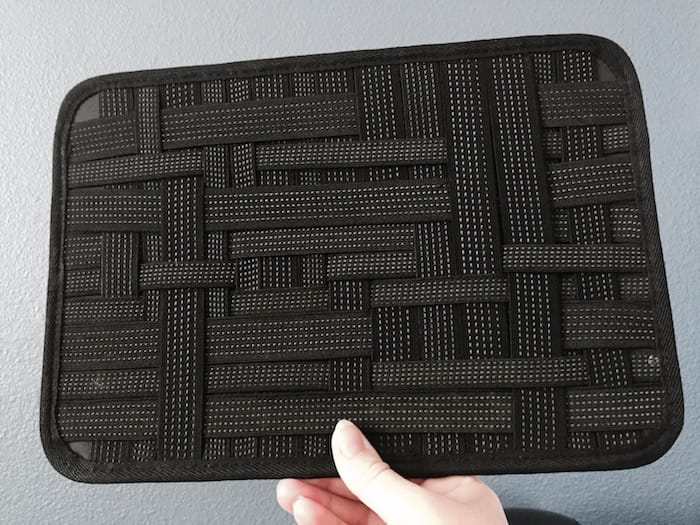
gridit

I purchased a Grid It bag organizer, in the hopes that I'll stop leaving things behind in the classroom.

This organizer is extremely flexible and allows you to find the perfect spot to store key essentials for your teaching (electronics, or otherwise).

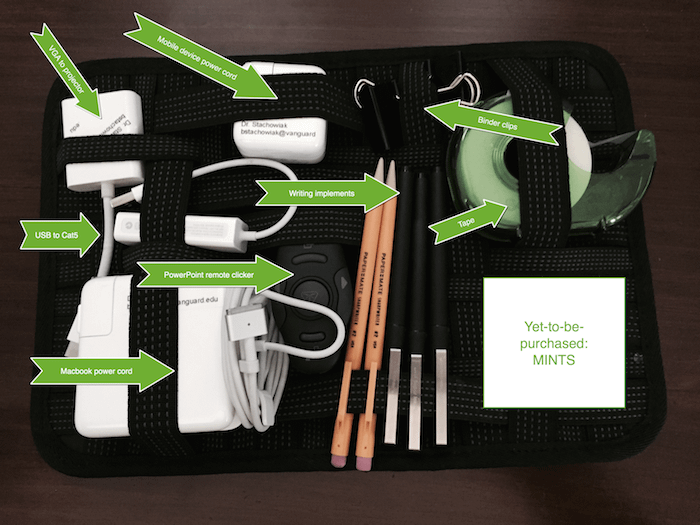
griditwithtxt 3

I've got my Grid It mostly packed now, with:

  • VGA to projector cord
  • Mobile device power cord
  • Binder clips
  • Tape
  • Writing implements
  • Powerpoint remote clicker
  • Macbook power cord
  • USB to Cat5 cord

The final essential item to be packed is a container of mints. When I was searching on Amazon, they seemed awfully expensive, but perhaps it has just been a while since I purchased mints.

The plan

My plan is to remove this Grid It from my bag as I'm setting up for class. Then, when I'm done teaching, I'll put any items that I removed back into the Grid It and will place it back in my teaching bag.

My hope is that I'll notice an empty spot in the grid, if something is missing, which will prompt me to look around and replace the item. This won't help me if I leave my phone behind, since I tend to keep my phone in my purse and not in my teaching bag.

I use my phone a lot when I'm teaching, especially for the Attendance2 app. That's the app that helps me call on students randomly, or place them into random groups. I use it at least a few times during each and every class.

I suspect that if I could just get in the habit of only placing the phone down on the same table where my laptop is, I wouldn't have as much of an issue. However, I'm not as confident in that “fix” as I am in the Grid It's potential for helping me not leave other stuff behind.

[reminder]Do you have any back-to-school purchases that you've made to help your year of teaching go better?[/reminder]


Filed Under: Resources Tagged With: tools

Cataloging course resources using PKM

By Bonni Stachowiak | August 3, 2015 | | XFacebookLinkedInEmail

Cataloging course resources

One of the compliments that students regularly give me is that I use current examples in my classes.

Generally speaking, they quickly follow the compliment with an example of another professor who shows dated videos in his class with regularity. I suspect that when others get it wrong, I get to look that much better than I actually am…

kodak

Of course, I always remember the time I showed a video in class about Kodak's marketing approach and one of my beloved students texted me from the back of the room.

He shared that on that very day, Kodak had filed for bankruptcy. We got to have a good laugh about it and fortunately, the event didn't take a toll on my credibility with him.

How I use my Personal Knowledge Management (PKM) system to catalog course resources

I have a defined personal knowledge management system (PKM) that I've been using for years now. It helps me not have to think very hard to bring current examples into a class. I'm also fortunate to have many current and former students who know I have an interest in a particular topic or company and who will send articles and videos my way.

Here are a few other ways I work to use PKM to bring current examples into my classes:

Use tags in Pinboard.in to make retrieval easier

I always include any course numbers that are related to the topic of the resource, as well as whether the asset being saved is an audio or video clip.

For example, I recently bookmarked this episode of NPR's Planet Money called “Free Parking.”

It is about a guy who decided to attempt to solve a problem of scarce resources in his neighborhood: parking spaces. He created an app that attempted to make life easier for residents, but he wound up in all sorts of trouble.

I used the following tags on Pinboard.in for the episode: busn114 (the course number for my introduction to business course), audio (so I can search for audio clips on a particular topic or course number), and economics.

Here's how it looks on Pinboard:

pinboard-tags

Streamline your PKM process to make saving resources easy

I use Feedly as the service where I subscribe to various blogs and other web resources via RSS. Then, I review the information that comes in using Newsify on the iPad. There are plenty of great RSS readers out there. I like Newsify for its dark mode, when I am reading at night, as well as for the way it displays the headlines, so I can quickly skim through them.

Regardless of which service you us, it is imperative that it has a quick method for saving articles to whatever bookmarking service you use. Pinboard.in has worked great for me these past couple of years. It even easily imported my bookmarks from Delicious, once I decided I had enough of getting frequent error messages when I tried to save to Delicious from within Newsify.

Automate bookmarking using Pinboard.in or IFTTT

While my RSS reader does much of the heavy lifting of finding and saving resources, Twitter also is finding its way into my process. I used to go through the laborious process of finding an article on Twitter that I wanted to save, opening it in my browser, and then saving it using the Pinboard.in Chrome extension.

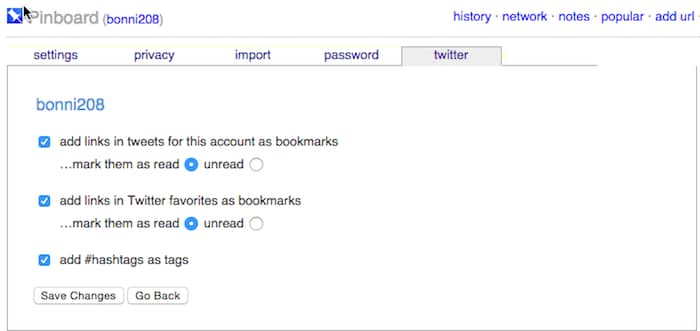
Now, I've set up Pinboard.in to automatically save any Tweets that I favorite into Pinboard.in. I don't have to do anything except click the star to set a Tweet as a favorite. Pinboard does the rest.

pinboard-meet-twitterHashtags are automatically created as Pinboard tags, though I often find myself needing to do some refining for the resource to fit into my tagging methodology. I have a task in my weekly review that reminds me to check items that have been added to Pinboard for Twitter and to add the necessary tags at that time.

If whatever service you use doesn't have a setup like the one that Pinboard does, check out IFTTT to see if there's a channel that can add the bookmarks for you. If this is the first time you've heard about IFTTT, it is worth checking out the Introduction to IFTTT from ProfHacker.

Getting Started

If this post is all new to you and it is starting to seem overwhelming, start small.

1) Sign up for a bookmarking service. I recommend Pinboard, but Diigo is also good if annotation is important to you.

2) Install the Pinboard (or Diigo) browser extension into whatever program it is you use to browse the internet. That way, you'll have a little button you can press to save an article, without having to navigate to the Pinboard or Diigo website each time.

Here's what my Pinboard browser button looks like on my Google Chrome browser:

pinboard-button

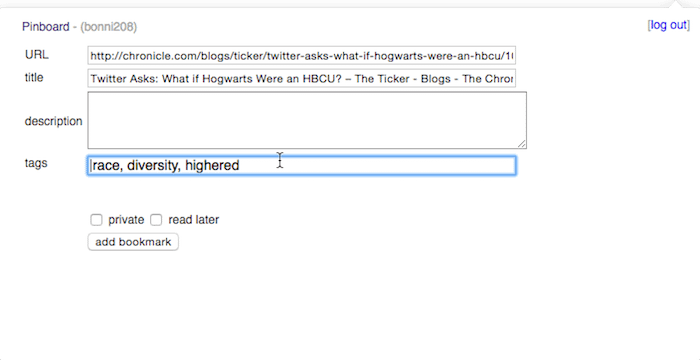
3) Bookmark articles, blogs, videos, etc. to use in your courses. When you come across an article or video that might be good for one of your classes, click the Pinboard/Diigo button on your browser and enter the associated tags and any other information you want saved. Here's an article from the Chronicle I saved today about what if the Harry Potter novels had taken place in a historically black college or university.savingbookmarkIt took me less than a minute to see the link to this article on Twitter, skim it to note that it was of interest, and to save it to my: race, diversity, and higher ed tags on Pinboard.

[reminder] What approach do you use for cataloging your course resources? [/reminder]


Filed Under: Personal knowledge mastery Tagged With: pkm, rss

Applescript for starting and ending presentations

By Bonni Stachowiak | July 28, 2015 | | XFacebookLinkedInEmail

apple-script

You know how it is…

It is your first day back after a vacation (or, in our case, a staycation). You're ready to rock and roll.

But, you run into all kinds of road blocks.

Today, I finally figured out the problem with my contact syncing that I've been experiencing. It first required being on the phone with an Apple tech support person for more than 45 minutes, though.

In the middle of the call, I had to ask the guy to hold on, since there was a devious looking spider that I had tried to kill earlier in the call. He was not about to be defeated.

I finally texted Dave and asked him to please come help. Dave was heroic and the Apple tech didn't seem irritated by the slight wait.

When the contacts issue was resolved, I finally got to my tasks on OmniFocus. One stood out to me as not urgent, but a potential time saver during the school year.

Apple Script for Starting and Ending Presentations / Classes

I finally allowed myself to experiment with Helmut Hauser's Apple Scripts for when you're starting and ending a presentation.

When I run it, the script quits various applications that I wouldn't want running when I'm giving a presentation. The script also launches and activates an application called Caffeine that makes sure my laptop doesn't go to sleep or run a screen saver when I'm in the middle of teaching a class.

The end-of-presentation script brings back all the applications that I want to have running when I'm not presenting (such as dropbox and OmniFocus).

It took me quite a while to set it up. This was mostly because I've never used AppleScript before today and I was in unchartered waters.

Helmut has also included on his post a link for an Alfred workflow that runs the scripts off of a keyboard shortcut. I hadn't installed Alfred on my Mac, since upgrading my hardware about a year ago. It is back on and I'm excited to familiarize myself, again, with some of the efficiencies it offers.

It is 5:05 pm… and I'm so pleased to report that when I press option-shift-9 on my computer, it takes care of everything I would normally have tried to remember to do before beginning a class.

Now, if only I could get everything else to the point of “done.” Summer is going to end all too soon.


Filed Under: Productivity Tagged With: applescript, mac, presentation, presenting, tools

My vote for the top 10 tools for learning

By Bonni Stachowiak | July 7, 2015 | | XFacebookLinkedInEmail

Jane Hart has invited our participation in the 2015 Top 100 Tools for Learning. If you want to have your say, you can submit your top list here.

top100

Top 10 Tools for Learning

Here are my thoughts on the ten most important tools in learning (not in any particular order):

Twitter

From time-to-time, I'll have friends threaten to stop using Facebook, as they just no longer see value in it. I don't hear those same threats from those who are using Twitter and have a strong personal learning network (#PLN) established for themselves. Twitter offers a constant stream of news and information that is most relevant to me (primarily on the professional front, with some personal in there, as well).

PollEverywhere

The PollEverywhere service provides an excellent way to both gather real-time input from students, as well as assess their understanding. I like how many ways there are for students to engage (tablet, phone, text/SMS).

Remind

This video has all the reasons why I love using Remind to keep in touch with my students.

GoAnimate

GoAnimate provides an easy way to build animated videos. You choose a background, add characters and other objects, and include text and/or audio. The video on Remind, above, was created using GoAnnimate4Schools.

Attendance2

This app does just what the title implies (takes attendance), but does a whole lot more. My favorite feature is the ability to call randomly on a student who is marked present for a given class session. Attendance2 helps me avoid calling on the same people, without realizing it.

Planbook

I like to ensure that each class session is somehow connected to my course learning outcomes. Planbook helps me organize all my handouts, PowerPoints, and links in one, central place. Plus, you can have it publish that information on a free site for your students to access, so they have information on what they may have missed, or for additional reinforcement of their learning in your classes.

Adobe Captivate

The two best products to use to create interactive, SCORM-compliant eLearning courses are Articulate's eLearning Suite and Adobe Captivate. The reason that Captivate has made my list and not Articulate is purely because Captivate is available on both the Mac and the PC.

SnagIt

Camtasia's SnagIt is also available on the Mac and PC and is the best screen shot tool I've ever used. I also spoke at the beginning of the Mac Power Users episode #240 about how I use SnagIt for screencasting feedback during the grading process.

LiveScribe Smart Pens

I've had a love/hate relationship with LiveScribe smart pens. On one hand, it is incredible that you can record what you're saying/hearing/writing and have it all be in sync with each other when you go to play it back. It's also a great method for creating what I refer to as micro-lectures. The biggest downside, though, has been that they've changed their playback methods so many times over the years. Currently, a user has to play them back by dragging a PDF to a website, to enable playback (or play it via an app, but that doesn't work as well for sharing). If only MP4 was offered as an alternative publishing method; I would be “sold” for good.

Overcast

The tool that contributes more to my learning than any other these days is Overcast, which is one of many podcast “catchers”/players. One thing I like about Overcast is the smart speed function, that skips over pauses in the recordings, but doesn't leave the speakers sounding like Alvin and the Chipmunks.


Filed Under: Educational Technology Tagged With: edtech, teaching, tools

  • « Go to Previous Page
  • Page 1
  • Interim pages omitted …
  • Page 43
  • Page 44
  • Page 45
  • Page 46
  • Page 47
  • Interim pages omitted …
  • Page 70
  • Go to Next Page »

TOOLS

  • Blog
  • Podcast
  • Community
  • Weekly Update

RESOURCES

  • Recommendations
  • EdTech Essentials Guide
  • The Productive Online Professor
  • How to Listen to Podcasts

Subscribe to Podcast

Apple PodcastsSpotifyAndroidby EmailRSSMore Subscribe Options

ABOUT

  • Bonni Stachowiak
  • Speaking + Workshops
  • Podcast FAQs
  • Media Kit
  • Lilly Conferences Partnership

CONTACT

  • Get in Touch
  • Support the Podcast
  • Sponsorship
  • Privacy Policy

CONNECT

  • LinkedIn
  • Instagram
  • RSS

CC BY-NC-SA 4.0 Teaching in Higher Ed | Designed by Anchored Design