• Skip to primary navigation
  • Skip to main content
  • Skip to footer

Teaching in Higher Ed

  • Podcast
  • Blog
  • SPEAKING
  • Media
  • Recommendations
  • About
  • Contact

Educational Technology

Hosting or Participating in Video Conferencing Sessions

By Bonni Stachowiak | June 13, 2017 | | XFacebookLinkedInEmail

Yesterday, I had a virtual conference with three people in New York who I've never met in person. Today, I connected, online, with Doug McKee for an upcoming episode of the Teach Better podcast. Tomorrow, my department is interviewing someone, virtually, for an open faculty position we have.

When I woke up this morning, I saw the listing of all the Virtually Connecting sessions that are going on surrounding the New Media Consortium's annual conference. Virtually Connecting makes it possible for those of us who aren't able to get to every conference we would like to (which I imagine might be all of us) to connect with people who are there and to have opportunities to learn from them.

The Virtually Connecting manifesto shares more of their values, motives, and goals.

People from all over the world join the sessions via their laptops and get to speak with presenters and others who are engaged at the event. Some conference presenters bring Virtually Connecting into their sessions (group conversation / workshop or virtual breakout session), while others share mover informally in-between the events they're attending in-person (hallway conversations).

As I reflect on how many times I'll be connecting with others on some type of virtual conference this summer, that number pales in comparison to when I'm in a season of teaching.

I use synchronous conferencing tools for all my classes (which are primarily taught in a blended format). Students also connect with me virtually for office hours, as do the faculty I coach in my role as Director of Teaching Excellence and Digital Pedagogy.

Zoom

My preferred synchronous video conferencing tool is Zoom. It is easy to use, is the closest thing I've ever found to feeling like I'm in the same room as the others who are on a session, and has crystal clear audio and video. I'm not alone in my affection for Zoom. Doug McKee describes how he uses Zoom in his teaching.

For more information on using Zoom to its fullest, check out Andy Traub's Master Zoom course.

Recommendations for Better Video Conferencing

In this post, I'll provide recommendations for how to make virtual sessions you either lead or participate in better. I'll also let you know what tools you can use to most of the opportunities to connect.

Get the lighting right

The lighting in the room you’re participating from makes a big difference in how welcoming you can be perceived to others on the session. You want most of the light sources to be coming from in front of you, not behind you.

If you’re unable to make that happen with your existing lighting, consider purchasing a desk light that will accomplish that feat for you. This one was recommended on a professional Zoom course that I took, recently:

TaoTronics Desk Lamp, LED Desk Lamp with USB Charging Port, Dimmable LED Desk Lamp Eye- care, Metal, Glare-Free, 5 Color Temperatures with 5 Brightness Levels, Touch Control, Memory Function

In particular, the warmth of the light makes a big difference and I wouldn’t purchase a light that didn’t have that option available.

Pay attention to the camera level

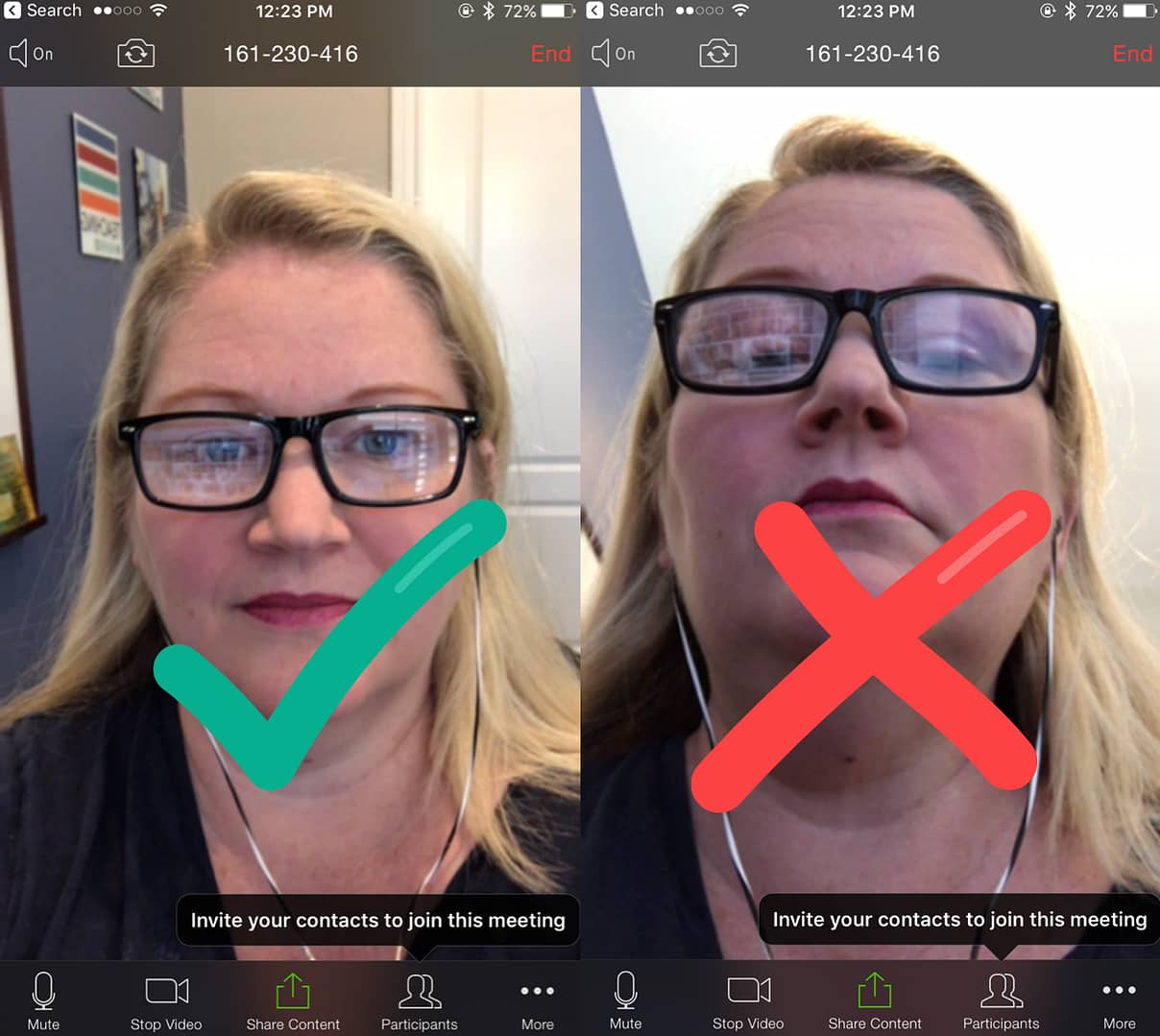
If you’re participating in a session using some kind of a device or your laptop, be sure you haven’t positioned the camera to be giving a nice shot of your neck and nostrils.

Use something to raise the level of your device up high enough that it is pointed toward your eyes and is fairly level (if not pointing slightly down at you).

I’ve used a stack of notebooks, a lap desk, and even a couple of pillows to accomplish this task. No one on the session is going to see what you have your laptop resting on, but they will notice if you are literally looking down at them the entire time.

If you're using a smart phone or a tablet to connect, virtually, consider getting an inexpensive tripod or multifunctional device to capture your video at the proper level. Or, you can get creative with stacking books, as well.

I probably could  have saved myself the four paragraphs, above, and just posted this picture of the difference it makes to have the camera at a good level. Hello chin! Hello nostrils!

See the difference it makes when the camera is at eye-level?

Avoid feedback noise

When you’re on an online session, the noise that comes out of your speakers can be picked up by your computer’s microphone and can start to cause feedback.

Depending on the way you’re connecting, this won’t necessarily happen 100% of the time. However, it is a good idea to always have a headset that has a microphone, to ensure that you won’t be causing all the other attendees to cringe as they hear the feedback amplifying in their ears.

Overall, avoid having the sound come out from your computer, but get it playing in your ears, instead.

Make eye contact

When you look at a web cam, you simulate eye contact with the attendees. If you look at the video of the other people in the session, you will appear to be looking down.

The goal is to be doing two things, simultaneously:

  1. Read the expressions on other attendees’ faces and identify ways that we might better engage them, while…
  2. Looking like we’re making eye contact with the “audience.”

When in a session with a small number of people, it’s typically feasible to position the video of the others’ faces in such a way that it is near your web cam. That way, when you watch the video of others, you’re also looking toward the camera and will appear focused on what’s happening.

If presenting in front of a larger group, you may want to spend more time looking directly at the web cam and then making glances at the chat box and the video of attendees.

Here is a video of me showing some of the dos and don't for live sessions involving eye contact, lighting, and distractors.

Let them know who you are

Most online, synchronous tools have some way for you to indicate who you are. Google Hangouts has the lower third banner, where you can include your name and a title, as well as a logo. Social Traffic Lab shows us how to create our lower third, when we join a Google Hangout.

Other tools have you simply type your name when you join the session. Be sure to use the name that you would prefer people refer to you as on the session.

Your Turn

What advice do you have for people who are participating in or leading virtual, live sessions?

How do you balance out the desire to have everything “perfect,” and potentially missing opportunities to engage, waiting to reach that point?

Filed Under: Educational Technology

Using Facebook Live in Higher Ed Teaching

By Bonni Stachowiak | April 21, 2017 | | XFacebookLinkedInEmail

This has been one of those extraordinary weeks in teaching. I have been edified by what I've observed about my students' experiences in my classes this semester. This week, my consumer behavior classes showed off our learning through a poster sessions event (originally inspired by Doug McKee’s experiences in his economics courses).

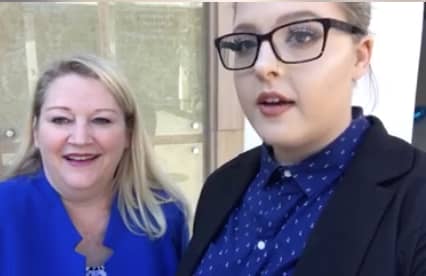
I’ll be writing more about the poster sessions event, overall, once the pictures are in from the photographer we used. In the meantime, I thought I would share about my first experience using Facebook Live, in conjunction with the poster sessions.

Facebook Live Successes

I’ll admit to being somewhat reluctant to try out Facebook Live. There was this feeling of trepidation (based on fears like: What is no one shows up? What if it doesn’t work “right”? What if (in this case) people are uncomfortable sharing in this venue?).

sample Facebook Live videos

It’s hard to look at these sample Facebook Live videos of Jane Goodall, Martha Stewart, Seth Myers, Adam Grant, and Amy Cuddy and not think that maybe this stuff is best left to the professionals.

But, I do enjoy experimentation and live video is becoming so widely used in education and in business, I decided to give it a try.

Here are some of my successes:

Selected a Great Host

Since I knew I would be busy facilitating the poster sessions event, I had found a couple of students who were dynamic and articulate.

Sadly, one of them got sick at the last minute, so we wound up with only one host. She was absolutely fantastic, though, and also had previously recommended a smart phone accessory that made needing a second host a bit less essential.

Purchased a Hand-held Stabilizer Accessory for My Phone

Our Facebook Live event host had suggested that I purchase a stabilizer for my iPhone. She found this one on Amazon for only $15 (at the time of purchase) and I didn’t hesitate.

It serves two purposes. You can hold it in what they call “pistol” fashion, so you can aim your phone in different directions, without having the wobbly, hand-held effect on the video. Or, you can separate the top section and turn it in to a small tripod.

I have an iPhone 7 Plus, which has some built-in stabilization. There didn’t seem to be anything on the accessory that was stabilizing the camera, but maybe this is just my not understanding how these kinds of accessories work.

Smartphone accessory for Facebook Live videos
This accessory was a lifesaver for our Facebook Live experimentation

All I can say is that this is the best $15 I’ve spent on a phone accessory in a long while and I would highly recommend it for anyone planning on doing some kind of Facebook live recording at a fair-type event, where you’ll be needing to walk around a bunch during your filming.

This video with all sorts of options for mobile LIVE streaming gear makes me think that I could just be getting started with my accessories for this sort of thing.

Just Went for It

Finally, I’m glad I decided to throw caution to the wind and just go for it. As you’ll see below, it wasn’t all roses and unicorns. However, I followed my teaching philosophy of experimenting and taking risks…

Facebook Live Failures

Despite finding a terrific host, having solid equipment, and being willing to experiment, I did make some pretty big mistakes for my first Facebook Live experience. I didn’t notice most of them until after I was done recording, which is kind of disappointing, since they were all correctable.

This post from Mashable with 15 tips for using Facebook Live would have been helpful for me to read before my first experiment, but has been now bookmarked for future reference.

Here are some of my Facebook Live failures:

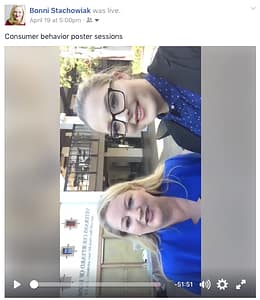
Camera Orientation was Locked and Caused a Sideways Video

This was the biggest technical hurdle I experienced (and didn’t realize until about 75% through the event, when someone pulled up my Facebook account on their phone and showed me that the video was sideways).

Facebook Live in Higher Education Teaching
When your camera orientation is all wrong when using Facebook Live

It turns out that with an iPhone, as long as we start our Facebook live recording in landscape, it should theoretically work correctly. However, I had my lock orientation activated on my iPhone, which then meant it didn’t matter how we started the recording. I still wound up with a sideways view of the entire event.

I found this quick video super helpful in providing the answer to Why your Facebook LIVE videos are sideways and what to do about it.

Text Orientation was Reversed, Making All the Poster Sessions Unreadable

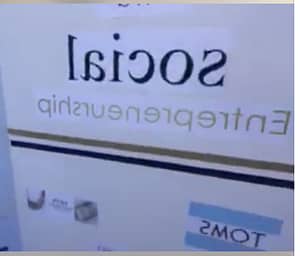
The other big technical issue that arose was that all the text was backwards to us, the viewer. There’s a way to fix this as you’re recording, but I wasn’t even aware that it was happening, so didn’t know that things were amiss until almost to the end of the event.

Facebook Live in Higher Education Teaching
Another Facebook Live Rookie Mistake: Text Was Backwards

The quick way to correct backwards text in your Facebook Live videos is shared on this post: Horizontally Flip the Camera to Avoid Backwards Text. If you go back and forth between your front camera and your main camera, you may have to switch this setting multiple times.

My Biggest Suggestion

You probably saw this coming, but my biggest suggestion to you, in terms of Facebook Live, is to give it a try. You can test it out by changing the privacy settings on your stream, which lets you keep your broadcasting to yourself, as you work out any kinks.

Let me know if you have started experimenting with live video in your teaching, yet, and how it has been helpful to you. If you have any stories of failure to share, as well, we can all contribute to others not having to go down the same paths we did.

Filed Under: Educational Technology

How to Create a Pencast

By Bonni Stachowiak | January 24, 2017 | | XFacebookLinkedInEmail

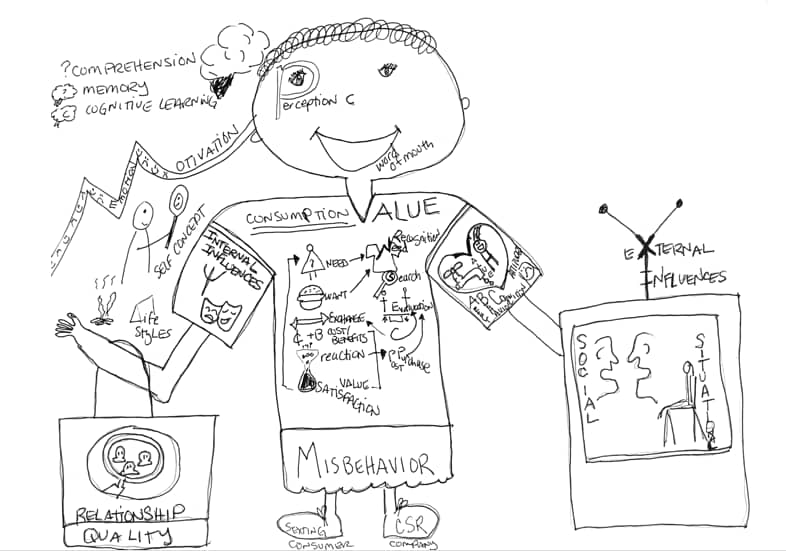
Pencast

I've found pencasting to be a tool that is aligned with my pedagogy and valued by my students. Many of you have asked for me to share about my process, so I've created a How to Pencast video.

How to Pencast Video

In the pencasting video, I describe:

  • What pencasting is
  • Why it is vital to my teaching and instructional design
  • Essential tools for pencasting
  • My pencasting toolkit
  • How I record and publish pencasts

Additional Resources for Pencasting

  • Apple Pencil
  • iPad Pro
  • Doceri
  • Mike Wesch's The Sleeper
  • LiveScribe (product I used for years, prior to switching to a tablet-based method)
  • The Sketchnote Handbook, by Mike Rohde
  • The Back of the Napkin, by Dan Roam


Filed Under: Educational Technology

The invitation

By Bonni Stachowiak | December 1, 2016 | | XFacebookLinkedInEmail

The invitation

Yesterday, a colleague emailed me with a query:

We are so frustrated with the mis-use of electronics in class by students and feel they ultimately take away from learning and discussion. Texting, messaging, on line, etc. We have considered putting a ban on all electronics (laptops included) and see what happens.

Our occasional bans have certainly increased student involvement in class! On-line we find articles regarding such a ban, but wondered if you have any helpful information for us.

So can you speak to the other side of this coin?

PS – I so wish we were all where you are in regards to electronics in the classroom, but we are not…

Her message coincided with me not knowing what to blog about this week. A match made in blogger heaven…

The Dynamite Device Debate

Distractions abound in our classrooms and in our lives. The device debate has been raging for as long as I've been teaching. Often times, the debate produces a false dichotomy: Should we “allow” laptops/phones/etc., or should we “ban” them?

The “yes” side says we should ban laptops/phones because:

  • Using one's smart phone too often could result in decreased academic performance
  • Taking notes by hand will prove to be more effective for their learning
  • Avoiding their use helps us focus better (though, as this study explores, it's far more complex than that)

The “no” side says we should avoid banning laptops/phones because:

  • It takes away the option our students are most familiar with (they grew up taking notes this way)
  • We may inadvertently discriminate against students with learning and cognitive disabilities
  • “…unilateral bans on technology in the classroom accomplish nothing but demonstrating an off-putting rigidity and an adversarial view of students“

Then, there are some who advocate for giving students the choice of whether or not to use devices. Some faculty create a laptop-friendly zone where students can choose to sit, if they prefer to use a device. It can be vital to explain these choices to our students, to properly equip them to make decisions about how they will engage in the classroom. There's also the option to cooperate with the inevitable and allow for tech breaks during an otherwise gadget-free class.

The Invitation

If you visited one of my classes, what you would observe (in terms of device usage) would vary greatly. On some days, the students wouldn't use any technology at all. In fact, I wouldn't use any, either, preferring to teach with sticky notes or engage in a more serendipitous dialog than linear slide structures provide.

Jose Bowen advocates that we “teach naked” – as in not use technology while in a classroom environment. He stresses that we consider what we are doing in our pedagogy and whether or not laptops and other technology tools serve our purposes. When he was a guest on Teaching in Higher Ed, he said:

Nobody uses a laptop while doing yoga or playing tennis. – Jose Bowen

After learning from Jose's model, I started to frame my requests to put the tech away in more of a need-based argument. That might sounds something like:

We aren't going to be needing laptops or phones today, so you can put them away and get ready for today's case.

However, on other days, I make use of retrieval practice tools and invite students to take their devices out.

Today, we're going to review about the four types of competition in a capitalistic economic system. I invite you to take out your phones as we use PollEverywhere. If you don't have a phone or other device with you, let me know and you're free to borrow mine.

I continue to be challenged and encouraged by people who have questioned outright laptop bans like James Lang and Kevin Gannon. I'm finding that the whole idea of banning really sets the wrong tone for my teaching aspirations. I don't want to treat my students as adversaries. I want to engage them with the possibilities that learning offers.

However, I also recognize that our students have established norms in many of the educational experiences they have had before meeting me that engagement is not welcomed. Many of them have only known learning as a passive experience. For that kind of pedagogy, give your students the choice of how to take in what you have to say.

If you are committed to a different type of teaching style than lecture, invite your students to experience deeper learning through the power of dialog. Instead of imposing restrictions about what they can't use, invite them to have an experience that can't be had through the use of technology.

One of my professors in my doctoral classes would allow us to use our laptops during about half of the course time, but had a dedicated time where we invited to rearrange our chairs into a circle and put all our gadgets away. Each of us would share our reflections on that week's reading.

I remember grumbling (to myself) a bit about the “hassle” of moving furniture. I now recognize the symbolism that the actions represented. After a couple of weeks, he no longer had to instruct us on what to do, we had adopted new norms for having a deeper dialog than we typically had when our noses were behind our laptops.

Don't ban; invite.

Be sure that the first time you extend an invitation to put the technology away that you have something planned that will demonstrate something different is happening. Surprise them. Engage them. Get them up and moving around.

Build their trust that when they accept your invitation to put the potentially distracting devices away, that you'll be welcoming them in to a learning experience worthy of the sacrifice.

Filed Under: Educational Technology

The trouble with a fixed digital literacy mindset

By Bonni Stachowiak | November 8, 2016 | | XFacebookLinkedInEmail

Feeling too old to learn new techniques,

…came the reply from a colleague, when I asked for some input on a workshop I gave recently.

I’ll confess to often struggling with this common theme. There is this myth that age has at least some correlation with digital literacy, if not full on causation.

David White attempts to reframe this challenge with a new set of analogies. Questioning the metaphor of natives versus immigrants, he proposes a new model for thinking about digital literacy.

He suggests we might better refer to digital skills using the framework of visitors versus residents.

This model resonates with me, especially since there are so many different aspects to what it means to be digitally literate.

This Digital Skills metro map from a higher ed organization in Scotland captures this complexity well.

Because a person knows her way around spreadsheets and word processors does not mean she will necessarily be versed in matters of digital privacy. Because a person leverages a flipped classroom model in his teaching does not mean he will necessarily be skilled at using collaboration tools.

While I resist the age explanation of technical incompetence, I certainly recognize the challenge of priorities. Our roles as faculty are comprised of diverse roles with competing goals. Digital literacy may not bubble up as important in one’s higher ed positions.

At a bare minimum, our students should be able to receive feedback on their work and know where they stand in all of their classes at any given time. A learning management system (LMS) is the tool most closely designed to provide that function, though I know there are some ethical challenges inherent in the use of an LMS.

We frequently talk about the importance of our students having a mindset that associates effort with improved academic performance. We try to influence their beliefs and show them that “anyone can learn our discipline.”

What if we started doing that same thing for ourselves?

I know I have some work to do on this, myself. How about you?

Filed Under: Educational Technology

  • « Go to Previous Page
  • Page 1
  • Page 2
  • Page 3
  • Page 4
  • Page 5
  • Interim pages omitted …
  • Page 8
  • Go to Next Page »

TOOLS

  • Blog
  • Podcast
  • Community
  • Weekly Update

RESOURCES

  • Recommendations
  • EdTech Essentials Guide
  • The Productive Online Professor
  • How to Listen to Podcasts

Subscribe to Podcast

Apple PodcastsSpotifyAndroidby EmailRSSMore Subscribe Options

ABOUT

  • Bonni Stachowiak
  • Speaking + Workshops
  • Podcast FAQs
  • Media Kit
  • Lilly Conferences Partnership

CONTACT

  • Get in Touch
  • Support the Podcast
  • Sponsorship
  • Privacy Policy

CONNECT

  • LinkedIn
  • Instagram
  • RSS

CC BY-NC-SA 4.0 Teaching in Higher Ed | Designed by Anchored Design