• Skip to primary navigation
  • Skip to main content
  • Skip to footer

Teaching in Higher Ed

  • Podcast
  • Blog
  • SPEAKING
  • Media
  • Recommendations
  • About
  • Contact

Educational Technology

Find the right reference manager

By Bonni Stachowiak | January 6, 2015 | | XFacebookLinkedInEmail

Anyone who has worked with a lengthy document knows how essential a reference manager can be in your research and writing process.

I decided a couple of years ago to begin requiring the use of a references manager in most of my upper division courses. This past year, I decided to include my introduction to business course in those same requirements, though there were plenty of times throughout the semester when I questioned whether or not the headaches were worth the payoff.

I'm going to describe three potential ways to get your students using some type of reference manager, or at least a tool to help them cite their sources more effectively.

The order I'll present the tools in will be from least to most robust, in terms of overall features.

Google Docs Research Tool

researchtool

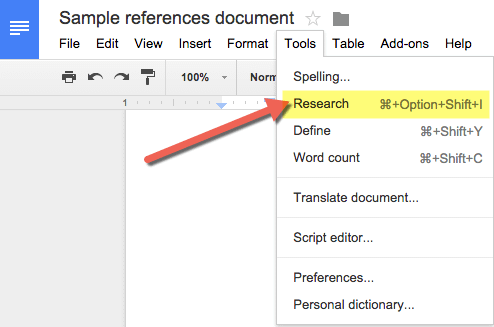
The research tool from Google allows you to bring up a search bar on the right-hand side of your Google doc and then insert a footnote in various formats to reference the source.

I was unable to locate any way to do proper APA citations, after searching under each option on the tool and in consulting their help files on the Google research tool.

Pros

  • Many students use Google docs in their writing, and it is built right-in to the word processor
  • It is easy to use and gets students thinking about supporting their writing with research, since it is so present on the screen as they are working
  • There is also an image search built-in that allows for the search to be refined to only those images that can be used legally

Cons

  • There doesn't appear to be a way to cite in APA format within the main body text (only footnotes available)
  • No way of saving, tagging, or adding notes to research (seems to have been built under the assumption that the research phase and the writing phase will take place at the same time)
  • It is built in to Google docs, which is nowhere near as feature-rich of a Word Processor as Microsoft Word

Another related option

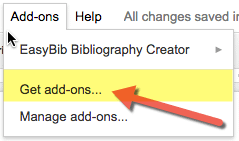
addinsAs I was digging around in Google docs for this post, I saw that there is a free EasyBib add-in that gives another way of creating a bibliography in a Google doc.

However, to do in-text citations and truly manage your sources, you need to pay for the service, which starts at around $4/month.

RefMe app

refme

While students certainly are big into using Google docs, they are even more into going mobile.

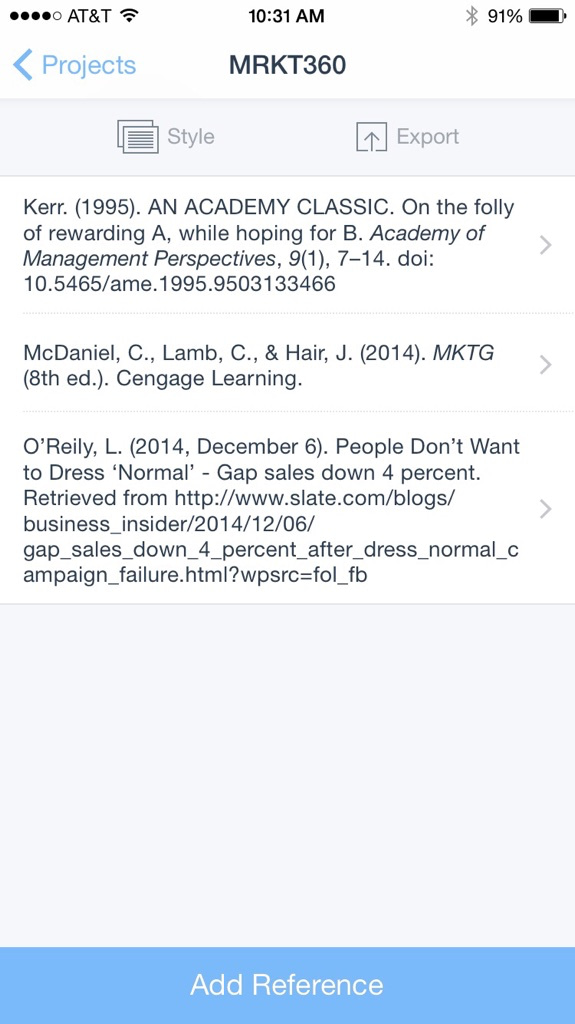
The RefMe app allows users to search for and save references in a variety of styles (the app states over 6,000 syltes are available to use).

Once you have searched for and saved a list of references, you can export it in the following ways on the mobile app:

  • Copy to clipboard
  • Email
  • Evernote

The RefMe website allows for exporting to Microsoft Word and other formats beyond what the mobile app offers.

Pros

  • Built from the ground up to be mobile-friendly
  • App is intuitive and simple
  • Syncing between the app and the website is seamless
  • Build individual citations (including optional page numbers) and copy/paste into whatever Word Processor you are using

Cons

  • No ability to cite within text and then build a list of references off of what has been cited in a document
  • No tagging or adding notes to sources
  • Are over 6,000 citation styles really enough for the average user? (kidding…)

 Zotero

zoterodemo

Let me start by letting the cat out of the bag. Zotero is my tool of choice as a researcher. It is also, reluctantly, still the tool I require my students to use (from undergraduates up to doctoral students).

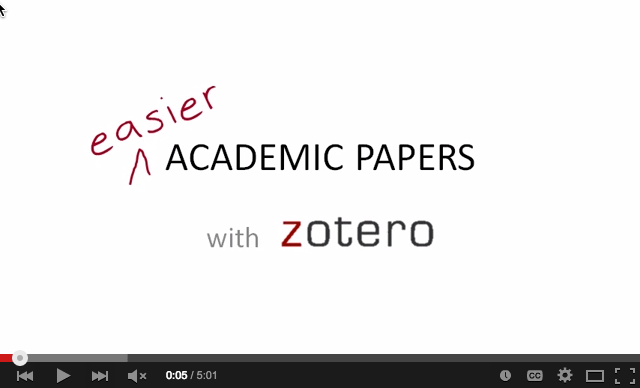
If you want a short demo that shows the power of what Zotero can do, check this one out I made a few years ago.

I found that the demo wasn't quite enough to get my students going, so I made this Zotero video series that walks you through how to get up and running.

Pros

  • Cite sources throughout a document and then press one button; it auto-creates a list of references from everything that was cited in the document
  • Once set up, easy to use and fast
  • Powerful organization, including tagging, notes and robust search
  • Simple to add citations while in the midst of research, with the press of one button on your browser
  • Group collaboration is powerful and easy, once Zotero gets set up and groups are formed using their website

Cons

  • No intuitive mobile app (there are some that developers have created, but they are cumbersome and not anywhere near as easy as RefMe)
  • The multiple steps it takes to get set up using Zotero allow room for mistakes to be made and/or for students to perceive that they won't be able to make it work
  • The variables involved in individual student's computer and application systems makes for quite a headache in terms of creating instructions for them to follow, as well as in troubleshooting any issues they have

Despite the cons listed above, over 95% of the time that students have trouble with Zotero, it is because they didn't follow the directions and not because of anything that is wrong with the tool, itself.

That being said, Zotero is not for the faint at heart and for those who aren't up for digging in to help when students experience difficulties with it.

I wish I could find a references manager that was as powerful as Zotero, but didn't require all the steps it takes to set up and also had a good mobile app.

Perhaps there's something out there, but I just haven't found it yet.

[reminder]What is your preferred references manager? What are its pros and cons?[/reminder]

Filed Under: Educational Technology Tagged With: edtech, reference, research, writing, zotero

How to develop library research skills in college students

By Bonni Stachowiak | October 21, 2014 | | XFacebookLinkedInEmail

This is a follow up to my post on how to teach seemingly boring topics. In this post, I provide some suggestions on how to develop library research skills in college students.

library research skills

After I posted on teaching boring topics, I received an email from a librarian who is challenged with only seeing students for 50 minutes a semester and trying to make the subject of library research come to life for them. Below are some ideas for how to approach this particular challenge.

While I use the library research skills topic as my example. the ideas could apply to other skill development work you are doing with your students. [Read more…] about How to develop library research skills in college students

Filed Under: Educational Technology Tagged With: games, library, research, teaching

Creating micro lectures for blended or online courses

By Bonni Stachowiak | September 30, 2014 | | XFacebookLinkedInEmail

I recently wrote a post for the Mac Power Users about my top ed tech tools. In the comments, someone asked a question about how I create pencasts with my LiveScribe SmartPen. I thought I would broaden the question a bit and share about how I create micro lectures, with pencasts being just one of the ways that task can be accomplished.

pencastdrawingMicro lectures for blended or online courses

Whenever we move to an online environment, we must be aware that our learners' attention spans will be shorter. While in a classroom environment, we might think about having a 50 minute lecture (though the hope is that we are actually not ever lecturing for more than 7-10 minutes without some kind of test for understanding or engagement, even in the classroom).

Online, that same 50 minutes might be broken down to five micro lectures with some means of assessment or reinforcement in between.

When I create micro lectures, my goal is twofold:

  • Keep them short, ideally less than ten minutes
  • Make them visual, with some memorable diagram that the students will “see” in their minds when they go to take the exam

Pencasts

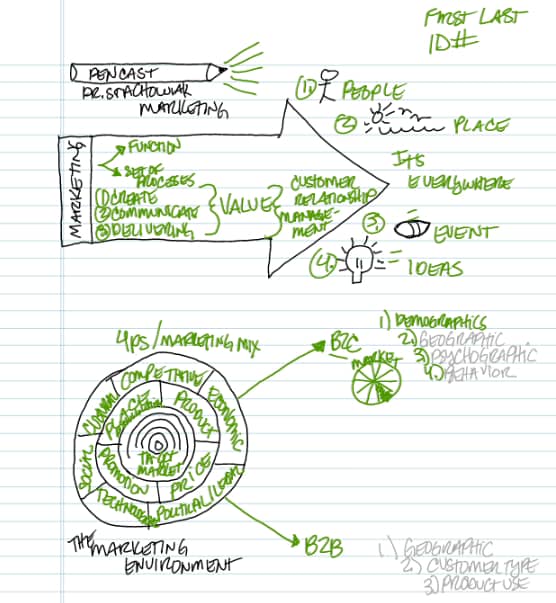
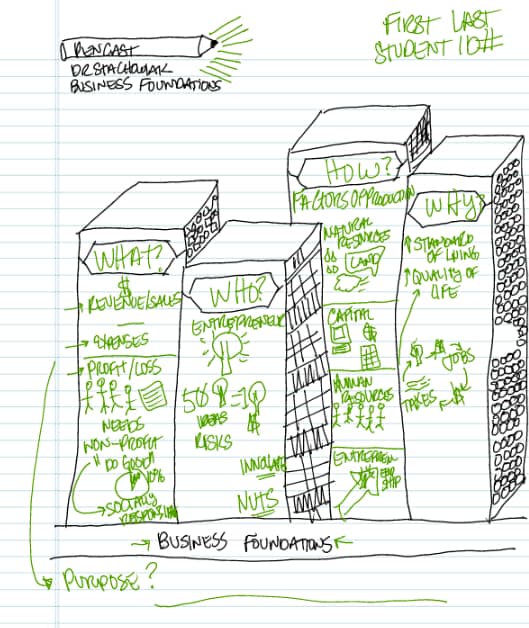
The term, pencast, denotes that audio can be heard (like a podcast), only you can also see accompanying sketches and notes that are in sync with the spoken audio. I encourage you to check out some of the examples on the LiveScribe website to get a flavor of how they work.

LiveScribe Smart Pens

I have owned every version of LiveScribe smart pen since they were first launched. I have somewhat of a love/hate relationship with them.

pencastsample1Advantages

On one hand, it is incredibly convenient to record a pencast. You need the special notebook paper that is recognized by the smartpen and you need your smartpen. For the most advanced model of their smartpen, you also need to have an app running on your iphone/ipad to capture the audio (it uses the microphone on your phone, instead of having an internal microphone, like some of the earlier models).

I've regularly asked the students who earned an A in my courses what tools they found most helpful in their learning and pencasts come out on top every time.

I haven't ever come across a student in my ten years of teaching who has been taught about visual note-taking in school before, so it takes some time to get them thinking in this way. By watching the pencasts, I am effectively educating them both about the topic being taught, but also about how to take concepts and capture them visually.

Wesley Fryer, who blogs for a K-12 audience, has an extensive set of resources for visual note taking that are applicable to higher ed, too.

Disadvantages

The biggest disadvantage for LiveScribe pencasts has been that they have not been reliable in terms of playback/sharing methods.

Early on, they started by having playback occur via their proprietary system. It was not a reliable way for students to view them, because it was so highly dependent on what browser they used and what version of their browser they were on.

Then, they shifted to having the pencasts play from within Evernote. The same challenges persisted.

With their latest pen, they have PDF as the means for sharing pencasts, only the non-static part of the PDF can only be played/accessed either by using the website they have set up to play them for users, or via their mobile app.

It is hard to figure out why they haven't gone over to a more reliable sharing method, after all the time they have been at it.

Yet, I still keep buying smart pens, so they must be doing something right.

Other options

In answer to the commenter's question, I'm not sure if Notability has some of the same sharing limitations as LiveScribe, as I haven't had a lot of experience using it.

However, I have heard great things about the share-ability of the Explain Everything App.  Its output options include: save to camera roll (on your iPad), save to ouTube, and a bunch of other sharing options. Here's Stephanie Castle explaining how to use Explain Everything in the classroom.

If you want to stay away from hand-drawn micro lectures and want to use other options, Wesley Fryer has a host of tools to create micro lectures in other formats to explore.


Filed Under: Educational Technology Tagged With: blended_learning, edtech, pencast

HeadsUp Game is a Lively EdTech Tool

By Bonni Stachowiak | September 23, 2014 | | XFacebookLinkedInEmail

I heard something a couple of weeks ago that was marvelous to hear.

That was fun. Really fun.

Headsup
Ian was the champion HeadsUp player between all three sections of the class

My introduction to business class had just finished playing Ellen Degeneres' HeadsUp game. While the free version of the game comes with general trivia decks of electronic cards, you can purchase custom decks for $.99.

I created a custom deck with about 15 vocabulary words from the first couple of chapters of our Introduction to Business Textbook. We spent the first 5-10 minutes of class seeing how many of the words the class could get.

There's a limitation to the way we were playing the game.

No real deep learning was going on. Once the students found a way to get each other to say the word or phrase, the shortcut stuck. One of the terms was baby boomers. Students would typically motion like they were rocking a baby and then make a noise of something exploding.

It wasn't like the students were actually getting a lot of practice even in defining the words, let alone experiencing any higher order thinking. However, there were sure some benefits to us starting out a class that way, early in the semester.

The HeadsUp game

  • Got students out of their seats
  • Reinforced the idea of having fun while learning
  • Encouraged individual students to take risks
  • Helped students start to use the vocabulary words from our class and identify where they may be behind in their learning
  • Engaged the students' attention (not a single person was doing anything other than watching the iPad screen that was held above various students' heads, as they played)

It has been a couple of weeks since we played the game. I'm definitely going to use Heads Up again, despite the verbal shortcuts taken by the students in their attempts to raise their scores.

The students are now able to use the vocabulary from the class far better than in past semesters. Better still, they are having fun while learning and are getting to know each other. This class does an extensive project of writing a business plan and having a sense of their fellow students' personalities and strengths is going to serve them well as they select group members.

Jeopardy Rocks game

For those of you without an iPad, or who are looking for a different game format, Richard Byrne introduces us to Jeopardy Rocks.

Updates

Two quick updates, since writing this post:

  • I've been unable to get the Jeopardy Rocks game linked to in Richard Byrne's post to work. That's too bad because it looks like a great way to review.
  • My classes played Ellen's HeadsUp game, again, today. This time, I used the random feature on the Attendance2 app to call on students, individually. Then, each student had to describe the word that I was holding above my head. I required that they actually explain or define the term, instead of using shortcuts. The game was still fun for the students, but also required a bit more knowledge on the students' part.

What games have you found beneficial to play in class, in order to reinforce learning?

Filed Under: Educational Technology Tagged With: games

A student asking for advice about earning a master's degree provides the perfect excuse to test out Storify

By Bonni Stachowiak | July 8, 2014 | | XFacebookLinkedInEmail

A student posted the following question on Facebook asking a question about the type of master's degree she should pursue:
questionrema
I decided to inquire with some of my doctoral students over on Twitter. They gave her some good advice, but it was going to be difficult to share the full picture with her, since she isn't on Twitter. Even if she was a regular Twitter user, it can sometimes be cumbersome to follow conversations over there, if you are new to the way that Twitter virtual dialog occurs.
I instantly thought that this was a perfect application of a website I had heard of, but hadn't tried: Storify.

[Read more…] about A student asking for advice about earning a master's degree provides the perfect excuse to test out Storify

Filed Under: Educational Technology Tagged With: edtech, socialmedia, storify

  • « Go to Previous Page
  • Page 1
  • Interim pages omitted …
  • Page 4
  • Page 5
  • Page 6
  • Page 7
  • Page 8
  • Go to Next Page »

TOOLS

  • Blog
  • Podcast
  • Community
  • Weekly Update

RESOURCES

  • Recommendations
  • EdTech Essentials Guide
  • The Productive Online Professor
  • How to Listen to Podcasts

Subscribe to Podcast

Apple PodcastsSpotifyAndroidby EmailRSSMore Subscribe Options

ABOUT

  • Bonni Stachowiak
  • Speaking + Workshops
  • Podcast FAQs
  • Media Kit
  • Lilly Conferences Partnership

CONTACT

  • Get in Touch
  • Support the Podcast
  • Sponsorship
  • Privacy Policy

CONNECT

  • LinkedIn
  • Instagram
  • RSS

CC BY-NC-SA 4.0 Teaching in Higher Ed | Designed by Anchored Design