Follow the Teaching in Higher Ed Podcast
About this Episode
Dave Stachowiak and Bonni Stachowiak talk about our top tools for learning votes on episode 432 of the Teaching in Higher Ed podcast.
If you’re a heavy podcast listener and are looking for a more powerful podcast app, I would say Overcast is a wonderful place to look.
Dave Stachowiak
On episode 432 of Teaching in Higher Ed
Voices on this Episode


Show Notes + Resources
- Jane Hart’s Top Tools for Learning
- Mike Taylor’s 2022 Top Tools for Learning votes.
- Zoom
- speaking engagements
- How to turn a Zoom chat into a useful summary and a sample summary from an AAEEBL Meetup
- Personal knowledge mastery system
- Overcast received a major design overhaul in March of 2022
- Unread
- Inoreader
- Mela
- Twitter – tv/movie recommendations, or learning from those in the disability community
- Raindrop– How Bonni uses Raindrop – Dave’s shared Raindrop.io digital bookmarks
- Hypothes.is
- PollEverywhere
- Karen E. Caldwell’s Learning Out Loud TEDx Talk
- Karen E. Caldwell’s Learning Out Loud Workshop
- Padlet
- Loom – verify your Loom account as an educator
- Canva
- WordPress
- Naomi Kasa – the page she created with all my upcoming and past speaking engagements – my resources page for a recent speaking engagement
- Blubrry
Affiliate income disclosure: Books that are recommended on the podcast link to the Teaching in Higher Ed bookstore on Bookshop.org. All affiliate income gets donated to the LibroMobile Arts Cooperative (LMAC), established in 2016 by Sara Rafael Garcia.”
Recommendations from this Episode
Transcript
[00:00:00] Dave Stachowiak: Today on episode 432 of the Teaching in Higher Ed podcast, top tools for learning with Bonni and Dave Stachowiak. That’s us.
[music]
[00:00:13] Bonni Stachowiak: Welcome to this episode of Teaching in Higher Ed. I’m Bonni Stachowiak, and this is this space where we explore the art and science of being more effective at facilitating learning. We also share ways to improve our productivity approaches so we can have more peace in our lives, and be even more present for our students.
[music]
[00:00:41] Bonni: I’m excited about today’s episode because Dave is back. Welcome back, Dave.
[00:00:45] Dave: I’m glad to be back. Thank you for inviting me.
[00:00:47] Bonni: For people who have no idea who you are, perhaps you could give a brief introduction.
[00:00:52] Dave: I am your best friend. What other introduction is needed?
[00:00:55] Bonni: That’s pretty much it.
[00:00:56] Dave: That’s pretty much it.
[00:00:57] Bonni: You’re also a fellow learner, and today we are looking at the top tools for learning, and we’re looking at it based on Jane Hart’s annual thing that she does, where she invites us to submit our top 10 tools for learning. She does voting every year, consolidates all of those into the top 300 tools for learning. Since you and I are both fellow learners for people who may not know this, Dave and I met while we were each getting our master’s degrees, and interested in learning about the same things, and that continues to this day.
[00:01:33] Dave: We’re both fellow teachers as well, different venues, but I do a lot of teaching online, and leadership development, and have taught adjunct over the years, although it’s been a while, and I’m always learning from you, Bonni. I listen to every episode of this podcast, and I’m often borrowing ideas and tools from so many of the guests to utilize in my own work, and online facilitation, and video conferencing, and our learning process, so it’s just been fun to learn from everyone here in this community.
[00:02:05] Bonni: Dave has a podcast that is called Coaching for Leaders, and I wish that I could say that I had listened to every episode, but I can say that I enjoy every episode that I have listened to.
[00:02:19] Dave: Hey, you’ve listened to most of them, I think.
[00:02:21] Bonni: Yes. I would also love to be able to say that back to today’s topic, that every year since I started, I had submitted a top 10 list to Jane Hart’s Top 300 Tools for Learning, but I missed a year, Dave, can you guess which year I missed?
[00:02:37] Dave: I’m going to say 2020.
[00:02:38] Bonni: Yes. I wonder what happened in 2020 that threw some of us off. I have been besides 2020, submitting a list every year since 2015, and this year, I think I was so in the practice of doing it, and I’ll never go back to look at the old list until I’ve completed my list for this year. I left Zoom off of it completely, even though I use Zoom for all different types of learning.
By the way, Jane Hart’s, now, she’s expanded her categories in recent years, so it’s workplace learning, it is personal learning, and it’s also in an educational context, and I use Zoom across all three of those. In fact, our children right now are using Zoom [laughs] in a personal context, and probably you could also say somewhat of an informal educational context, talking to their friends while they play Minecraft.
[00:03:26] Dave: I think it’s okay that Zoom didn’t show up on the list. I think everyone probably at this point is either decided they’re using Zoom or not. It’s pretty ubiquitous.
[00:03:35] Bonni: Besides Zoom, we’re going to get to my top 10. These are not in any particular order, although I did think about the order in terms of trying to group them together when I use them together, or they’re similar tools, but they’re not in order of priority. We’re going to start out with a podcast catcher, as in an application, or an app that can be used to play, and track, and store podcasts, and it’s called Overcast. Overcast is absolutely a daily part of my life and learning. Back in March of ’22, the developer of Overcast did a major design overhaul, and it was at that time that Dave, I came to you and said, “I’d really like to see how you organize your podcast.”
I was able to take a lot of the practices that you use in organizing your podcast, and I am so happy with how I have things going. I used to just pretty much have a queue that was in chronological order from the most recent episodes that had come in across all of my different podcasts, all the way down to the oldest. As you could imagine with how many podcasts that I listen to, that got really overwhelming, and sometimes I would have to do one of those, get real with yourself moments and say, “This is just unsustainable.” Now, I have it organized in rainbow order so the people from the television show Home Edit would be very proud of me in emulating that.
It has what are my priority podcasts. Then it has a queue where I can just manually put things there.
It’s almost like having a shelf to put podcast episodes that I want to listen to, and then as you might expect, different topics like technology, and leadership, and culture, and politics, and all that stuff. Oh, one more thing I wanted to share about, is I also have podcasts that I only want to listen to in the order that they were recorded. Like if it’s a box set, if you will, where it’s like, these are ones that you would really want to go through and almost binge together. I have those types of podcasts there. I will confess that I don’t get to those very often because it kind of feels like some of the more current ones feel more fresh to me. I don’t know. But thank you for helping me see how you organized yours, and my podcasting life has never been better.
[00:05:57] Dave: I’m glad I was able to help in some way. Bonni and I have both been using Overcast for many years. I think if you’ve listened and used apps like the very popular ones, Google Podcast, Apple Podcast, Spotify, what Overcast allows you to do is just to get so much more granular and detailed on how you listen to shows, how you organize them, removing pauses from the shows where you don’t even realize that there’s just so much you can do. If you’re a heavy podcast listener and are looking for more of a podcast power app, I would say Overcast is a wonderful place to look.
[00:06:35] Bonni: Overcast and podcast catchers like it are used for audio content. What I use for the written word is an RSS reader called Unread. What Unread and other RSS readers do is it presents me whenever I go into it, the headlines of unread stories across all different kinds of categories that I’ve set up. If I want to read one of those headlines, it’s a simple tap. I do most of my reading on a tablet, in my case an iPad. If I want to read one of those headlines, I can tap on it, or I can just scroll by, and I have it set up that when I scroll by those headlines, it’s automatically marking them as red.
If I’ve scrolled by it, I’m not interested in reading it, I don’t want to bookmark it anywhere, it’s just going to go by. What I love about it is I can control it entirely with one thumb. I can scroll past those headlines, and things are getting marked, I can swipe. If I’ve come and read an article and I want to go back out into those unread stories, it’s a simple swipe. I don’t really know very many apps that you could literally control for the most part with one thumb, it’s really pretty incredible. It makes it very comfortable to sit, and read, and be able to take in a lot of information, and prioritize what I want to go and read. It’s a really, really well done app.
If I want to bookmark, then we’ll get to another tool that we’ll talk about in just a minute, but that is an easy process to do from Unread as well. If anybody is interested, Unread is a reader. It also can work as an aggregator, so you could go and subscribe to different feeds from a lot of websites, and create essentially your own custom news and reading service. In my case, I use a different service for that called Inoreader, which I heard about from Laura Gibbs many years ago, and have continued to benefit from. When it comes to RSS, you need an aggregator, you need a reader, and a lot of times those two things can be the same tool. It kind of just depends on how granular you want to get with the features that you’re looking for.
[00:08:49] Dave: Those of you who use apps to read RSS know there’s lots of options out there. What Unread has going for it that I think I’ve never been able to find anywhere else is just the beauty and simplicity of the app, and the typography. It is just a joyful experience to read, and you forget that you are using an app to read, and that I think is the best thing it has going forward. It’s worth a look if you do a lot of RSS.
[00:09:17] Bonni: Twitter has long been on my list of tools that help provide for all different kinds of learning. I use Twitter in personal learning, as well as in an educational context, and continuing to grow my own knowledge and skill. The other, I don’t know, a few weeks back I was ill, and I was [laughs] not a happy camper, and I put up on Twitter, “Can someone help me, I need a television show to make me laugh.” Boy did I ever generate a lot of great suggestions, so thanks to those of you who contributed to that list, but it also can be something quite more significant.
I have a list that I have created to be able to curate some of the members of the disability community, and be able to learn from their contributions on that social network, and almost every visit, I find some tangible benefit from being there, and while I do want to note there do continue to be major problems, both ethical, societal on these various social media platforms, including Twitter, but this is to celebrate really a big, big contributor to my learning does continue to be Twitter despite some of those downsides.
[00:10:34] Dave: Our next tool is Raindrop. Raindrop is a digital bookmarking tool, and we have gone through a number of these over the years. There was an original one, it started with a D. What was it?
[00:10:46] Bonni: Delicious.
[00:10:47] Dave: Delicious was one. Dig I think years ago. We used Pinboard for years. We’ve been using Raindrop for the last several years, and what Raindrop is, is it’s a service that when you find something that you would like to be able to come back to, you can digitally capture that link within their system, and then tag it, organize it in lots of different ways so you can then utilize that as essentially your catalog of where you want to find resources, articles, videos on the internet. The nice thing about Raindrop is not only are there lots of ways to organize that, again, a beautifully– the UI, the graphics are really beautiful on Raindrop, but you can also share with others, and you can even make it available publicly.
Both Bonni and I have done that on our Raindrop accounts, and shared it with the folks who listen to our podcast. By the way, you don’t have to do that either with your entire account or even part of it, but you can choose, like there’s certain parts that I’ve made public, there’s other things that are private, like weeks, for example. Anytime I find a cute cat video on the internet, which there’s a lot of opportunities for every day.
[00:11:50] Bonni: There’s a lot of opportunities.
[00:11:52] Dave: Both of our kids are filled with joy about watching animal videos on the internet right now. We have a tab called kids, which is private in our accounts, but if I’m on the website, I hit the little Raindrop button on the browser, and I can save it into wherever I want it to go. In that case, I’ll save it to kids, and then when we’re reading at night, sometimes I’ll pull out my iPad and I’ll say, “Hey, let’s go through the kids’ queue and see what’s in here,” and then we have a fun time laughing at the cute cat and animal videos, but you can use it for just about anything.
You can use it entirely yourself, or you can make it available with others, or anything in between. It’s a really wonderful service, and has allowed us to not only organize what we’re finding online better, but also to be able to be generous to share it with others.
[00:12:36] Bonni: In case anyone thinks that I’ve been holding out on you and not sharing this publicly available Raindrop category, Dave, I actually have not shared my Raindrop yet publicly.
[00:12:45] Dave: Oh, okay.
[00:12:46] Bonni: Because I took a little bit for me to get used to what that’s like, but boy have I ever had fun with our kids’ queue that we have that available for each other. I do have it set up to share with some coworkers things that relate to our institute for faculty development. You’ve heard me share just not with the community here. Another feature that I have not experimented with a lot that they added in somewhat recent months is the ability to highlight on one of the articles that you are going to bookmark on Raindrop, and then it saves those bookmarks, and it even integrates with a service that’s shown up on past years’ top lists for me that’s called read wise.
Again, when it comes to me, if I’m going to be doing a lot of highlighting, and a lot of annotating, I tend to prefer using Hypothesis, which is a social annotation tool. When it comes to all of these tools, Dave talked to you about all the plethora of possible ways you might listen to a podcast, or read RSS feeds. There are so many ways to do things. Often I will find I gravitate toward those tools that were designed from the ground up to do whatever the thing is, and so, since I know hypothesis better, that’s where I tend to do more of my highlighting and my annotation. It is nice when you can consolidate tools, and I think I probably should play a little bit more with this feature of Raindrop.
[00:14:13] Dave: I’ll give you the link that I have publicly, so folks who want to just go and look what it looks like if you do share it publicly, you’re certainly welcome to do that with my account. We’ll put that in the episode notes as well.
[00:14:24] Bonni: Another tool that I have used for years and has shown up on my top tools for learning list quite frequently is a polling tool called Poll Everywhere, and when I think back to early in my career, I started out as a computer instructor, and then, about a year after doing that, I wound up being responsible for managing the other computer instructor. I would hire them. I would train them, and out they would go, and when I would be sitting in their classes, something that a lessons experienced instructor would do is they would stand at the front of a class.
Picture, Dave, 24 people sitting in an 8-hour Microsoft Excel class. Yes, this was a different time, let’s just say that. The instructor would be at the very front looking at a sea of the backs of people’s monitors. They can’t really see people’s faces too well, but they especially can’t see what’s on their screen. I’m sitting in the back row, and I can see every single monitor that’s in that room, and whether or not they’re actually keeping up with the instructor as they’re progressing through a lesson. They would say, “Hey, are y’all with me?” You’d get the heads nodding, and so they’d applaud right along, and I’d think, “Well, that person’s not with you, that person isn’t with you either.”
When I think about polling tools, and they certainly have evolved so much, they really give you an opportunity to both get the pulse of what’s happening, what are people experiencing so you can ask for people’s perceptions of what they’re experiencing, but they also allow you to do things like retrieval practice, where there actually is a right or a wrong answer to something, and you’re helping people build those neural networks in their brain and strengthen those. So, Poll Everywhere is just great. It’s wonderful. It’s got lots of different question types. Everything from, you’d expect it to have multiple choice, but it also has word clouds and open-ended questions.
You can upload images and have people tap or click on where they identify something, or what they’re perceiving on maybe a grid of a two-by-two quadrant or something like that, and so, I absolutely love using Poll Everywhere. I use it mostly for formative assessment, meaning there’s no bad downside to you getting things wrong. People can be anonymous, but it’s just helping them really be able to assess their own learning, and it’s also helping me be able to see that, are people actually getting it? Instead of sitting in the back of a room and just– I should say instead of standing in front of a room and saying, “Did y’all get that?”
I can actually see that, and we used it. We recently did our new faculty experience, and so, we used it a lot in that program, and rather than me telling these new faculty how good a polling tool can be, for them to get to experience it is so powerful. I wanted to share one other thing that I used Poll Everywhere for that was so powerful. Comes out of James Lang’s work, particularly his small teaching, how powerful prediction can be. I showed a video from Karen Caldwell, a Ted talk of her talking about the differences– It was a Harvard study that she was talking about between our feelings about learning, and our tests of learning, and I asked these brand new faculty to predict, what do you think happened when they changed this particular dynamic in the study?
I pressed pause on Karen’s video, asked them to predict, switched over to Poll Everywhere, and then switched back, and it can be such a powerful tool rather than having people just passively listen to something, to actually get their brains engaged. It was so great, Dave, because, 100% of them got the answer wrong, and it happened fairly early in the new faculty experience, and I think it was really healthy in a sense of that everyone got it wrong, and we learned about what is that going to be like together when we fail, and how important failure is in learning.
I wasn’t trying to trick them either. Oh, actually, I think I asked you the same question, and you also got it wrong. It doesn’t make common sense to us. If you don’t know about that Harvard study, again, I wasn’t trying to play tricks on them, but really nice in a learning community to be able to take the pulse like that, build that community, and to integrate it in with other kinds of media. You can tell I really like Poll Everywhere. I could probably do like five episodes just on it, but we have another one to do. Is there anything you wanted to add about polling or Poll Everywhere?
[00:19:09] Dave: No, just that I’ve seen you use it. I’ve never used it myself over the years, but I have seen you use it, and it’s really cool to be able to get that kind of real-time feedback, like you said, to be able to assess exactly and prediction. How fun.
[00:19:22] Bonni: Yes. Padlet is the next tool I’d like to share about, and Padlet is a virtual corkboard at its core essence. You can build a virtual corkboard that people can participate in as you are gathering the ideas. Let me pull up a Padlet on such and such a question, and I’d like everybody to take out your phones, or go on your browsers on your computers and go add to this right now in real-time while we are having a conversation about something, or have people add things over time more asynchronously, and what I love about it, Dave, we can also do both. So, if you’re there for that synchronous conversation, great. Let’s all go and add to it together. Or if you end up doing it a week from when we were working on it, you can see everybody else’s past contributions, and make ones of your own. For this particular new faculty experience that I was just mentioning, I loved using Padlet in combination with an analog tool. I found out that our mail and copy center can print posters, I had no idea. They do it for less expensive than if you were to go to one of the big printing places, more of a shop that would do it for you outside your university. I would create these posters for types of questions.
There was a parking lot where a facilitator might say, “We don’t have time for this question right now. Let’s get it on the parking lot. We’ll have time to address it later.” Or what I called burning questions, like, these are things that don’t have easy, quick-fix answers that we really should be wrestling with over time. We gathered those. Then there was a third one that was a poster, I notice, I wonder, and I found one of those beautiful photograph of the– and now I’m forgetting the name of it, Dave, this is embarrassing. In the beautiful lights that show up in the sky, that like blues and turquoise and–
[00:21:25] Dave: Sunset?
[laughter]
[00:21:30] Bonni: No, the Northern Lights, is that?
[00:21:33] Dave: The Northern Lights, the Aurora Borealis?
[00:21:35] Bonni: That’s it. That’s it. I found a beautiful picture of that because it did remind me.
[00:21:39] Dave: I know where you’re going with that.
[crosstalk]
[00:21:42] Bonni: Every person in the room had a set of stickies in front of them. They could write something that they were noticing, or something that they were wondering on a sticky and then put it physically on that poster that was in the room, or they could use the QR code that was also printed on that same poster, and go and contribute that digitally. I love the blend of the digital with the analog. It was so fun to get everybody engaged. The Padlet allows you to have a custom background. I made sure that for each one of these corkboards, they had the same background.
If you’re standing in the room, you see the northern lights. If you went digitally to it, I had that same image there, it just turned out so, so well. I cannot recommend Padlet enough, and I love that we can go and keep revisiting that, because some of those burning questions, I suspect they’re still going to be asking those questions even after 10 or 20 years of teaching.
[00:22:42] Dave: The next tool is Loom. A tool that I don’t know how, as an educator, or actually doing anything in any online context. Of course, we’re doing now, Bonni, where we’re collaborating with others how I could get away without using this app anymore. It is a app that does three things I think really well. It records a video of just you. If you would want to send someone a video message versus just sending a text or an email, it is a wonderful tool for that. It also is wonderful at screencasting. You can install the app on your computer, and it will capture your screen and your voice as you are doing something to demonstrate something or walk someone through something, then it can do both.
It can do recording a screencast and recording your video at the same time, and superimposes the image. It’s a really wonderful service that does those three things super well. The beauty of it is, when you are finished recording and you hit stop, as long as you have a decent internet connection, within a few seconds you get a link, and then you can paste that link wherever it’s going. If it’s going to be texted or posted online, or sent in an email, it makes it so easy to be able to have video messages be able to be communicated to others. I pay for it since I’m not affiliated with an educational institution.
The wonderful thing with Loom at least at the time we’re recording this is, educators who are affiliated with educational institutions still get it for free, right, Bonni? You have a free account. If you’ve not tried Loom and you’re affiliated with an educational institution, you should at least set up an account, get verified, and just test it out, play with it. It’s also on all the mobile phone apps. It’s such a powerful tool, and I use it multiple times a day.
[00:24:30] Bonni: I cannot emphasize enough how powerful it is when tools that we use, as soon as we stop recording, or stop taking the screenshot or whatever it is we’re doing, as soon as we press stop, they’re in by some sort of magic in your clipboard waiting to be pasted wherever you want that link to be pasted. You don’t have to wait for your video to upload. You don’t have to wait for it to be done. It’s really ready for instantaneous sharing. Could be in a learning management, you could give feedback on grading this way. You could put it in an email, rather than trying to type out the steps for how to do something, here’s a quick video for how to do that as well. Loom is really powerful.
There are a lot of different screencasting applications out there, but for me, Dave, the feature that you talked about with that being ready to go in the clipboard is I won’t use another one if it doesn’t have that available to me. There’s a whole body of research around what is called authentic assessment. How do we get as close to the context that someone might be using the concepts, the tools, the skills that we’re trying to teach them as we possibly can?
The classic example would be, does your physician take a multiple choice question in order to treat you as a patient? It’s not that we can’t ever use multiple choice questions, by the way, on our way to learning, but really, the more authentic the assessment, the closer we’re getting to really providing real value. For me, I have students use Loom all of the time. I’m teaching, once again, for like the fifth or sixth time, maybe even more than that, a class called Personal Leadership and Productivity. Part of what they do is build out different systems, or learn to use their calendar, and learn how to set up a number of different systems. Rather than have them write a paper about that, just show me.
I call it the adult version of show and tell, like, “Go and show me what your system looks like right now.” It really does become a conversation, but a conversation that happens more asynchronously, and it feels very intimate, and very authentic as we’re having these conversations. I’ve even had full-on conversations with coworkers on Loom just because we’re not able to schedule a conference call or a Zoom, it doesn’t make sense to do that, but just to be able to go, “Here’s what I’m talking about right over here.” It’s just so powerful to do that.
[00:27:07] Dave: I’ve heard you talking about using Loom in the classroom context. When you utilize it, there are students, can they reply to your Loom videos with their own video without setting up an account? Or are you having them go and set up their own like educational virtual accounts?
[00:27:21] Bonni: Oh yes. They set up their own educational accounts.
[00:27:23] Dave: Oh, interesting.
[00:27:24] Bonni: A lot of their assignments in that class are, “Submit your Loom video link.” I’d say 30% to 40% of the assignments are actually Loom video links. I do allow them to use something else as long as it has those three things that you said, Dave, and guess what percentage of them actually find another tool and use another [laughs] tool that has those things? The answer is zero.
[00:27:44] Dave: They go with Loom. That’s great. It’s great service.
[00:27:47] Bonni: All right, next up on our list is Canva. Canva is at its core, a graphic design program. The more that I get to know Canva, the more I realize is actually there. I did start out using Canva for making signs that I would hang up around my class to do these sticky note exercises. I’ve been writing about and talking about my use of Canva for a long time. But Dave, most recently, I started using Canva for the slide decks for the different presentations that I give. What’s great about say using it on Loom versus using it on PowerPoint or something like that, is that it is a web-based application.
It was designed from the ground up to easily be able to do things like embed a tweet, or embed a video from YouTube, or one from Vimeo, or even one from Canvas studio, which is the video tool inside of the Canvas Learning Management System if your university pays for that additional tool at your institution. I absolutely love experimenting with now building slide decks there. You can even use some of their video content. I gave a talk recently for the DT&L conference.
My title slide had clouds that were just suddenly moving in the background, and I did a quote from Mary Oliver about wild geese, and I had the words to the quote up in front, but behind it was the most gorgeous clip of geese flying, and then coming. It was just so cool. You don’t want to have a video that’s distracting, because then you’re getting into issues with cognitive load. If it’s complimentary, and it’s enhancing whatever it is you want to share, I’ve just found it to be delightful. I wanted to share one other example, Dave. I had Doug Lederman, who’s the co-founder and senior editor or Grand Poobah.
Editor, I’m sorry, I’m probably getting his title wrong, but of inside higher Ed, he wished me a happy 8th birthday to teaching in higher Ed back in June when I had that, and so I had his tweet embedded, but behind it was someone blowing out candles on a birthday cake. I mean, the possibilities are limitless here. Using Canva has been so fun for me to just get creative, and I would highly encourage you to take a look if all possible at the pro version of Canva.
The free version gets you pretty far, but what the pro version does for me is helps simplify things around having consistent branding for things. Consistency can just be helpful in terms of, we’ve got all of our university’s color palette there, any logos that we might use, and we use it as a team. Up to five people in my department can have access to it. We all make sure we’ve got the right logo, we all make sure we have the right fonts, because we have specific fonts that our university uses, and you can create different brand kits too. We actually pay for it for teaching in higher Ed. That’s separate, of course, because that’s a personal investment that we make. My work pays for it for the departments that I lead to. I cannot say enough good things about Canva.
[00:31:16] Dave: The final two tools on the list are Quick, WordPress and Blubrry. WordPress is just this incredible open source framework that has really taken over the web. Over 40% of websites are hosted on– or not hosted on WordPress, but built with WordPress. If you’re looking for a framework that is open source, and really ubiquitous as far as tools, and resources, and services, I think WordPress is worth a look.
There are of course many other website builders out there. I know a lot of people have heard of Squarespace, and I think it’s a wonderful option as well, if you are building something that you are going to do more with in the future, if you’re building something for a business or a team, I think WordPress is a great place to start because it can grow with you, and both of our sites have been on WordPress since they existed, so we recommend that. Then Blubrry is what we use for our podcast hosting.
If you have a podcast, or you’re considering hosting a podcast somewhere, Blubrry, which is spelt B-L-U-B-R-R-Y is what we use for all of our podcast hosting. There’s many options out there as well. The reason we use Blubrry is because it integrates so beautifully with WordPress, that’s really been their differentiator from the beginning, and we really love their plug-in and their resources that makes it easy for us to produce shows, and to air them to you.
[00:32:40] Bonni: Now it is your turn. Sadly, the voting has ended for this year, but it’s your turn to go over to check out Jane Hart’s Top 300 Tools for Learning. As I mentioned at the top of the episode, you can go explore tools for learning about your personal learning. You can look at workplace learning, or you can check out what those tools look like in an educational context as well. I highly suggest that you head on over to check out the link that will be in the show notes for Jane Hart’s top 300 tools. This is the time in the show where we each get to share our recommendations, and Dave has something he would like to recommend.
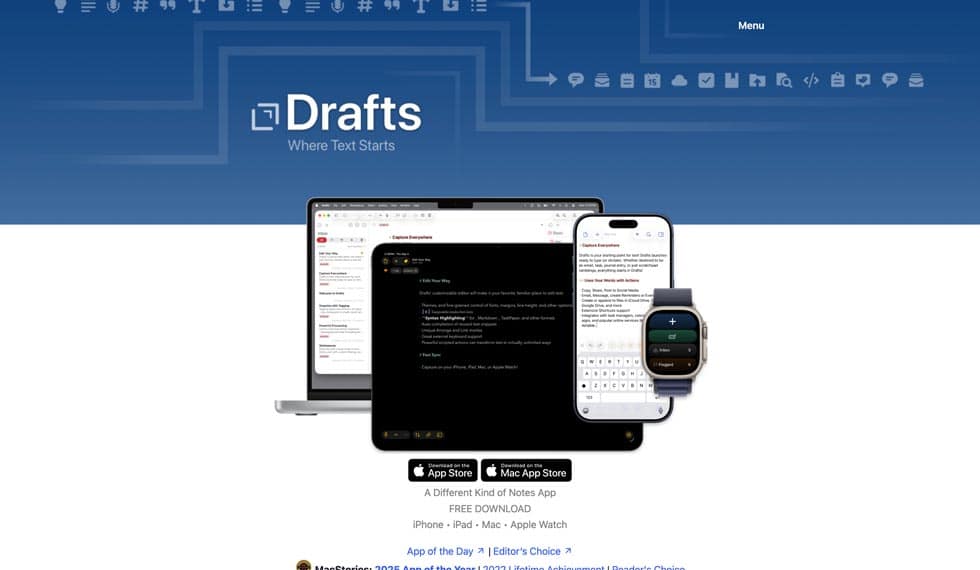
[00:33:21] Dave: I may have recommended it on the show before, Bonni, but it’s worth repeating even if I have, the app Drafts. Drafts is an app that is native to iOS, and the Apple, and Mac ecosystem. If you’re in that ecosystem, I think it’s worth a look. There is a free version of it. The beauty with an app like Drafts is it’s wonderful at capture. Capture, of course, is so important for so many of our personal learning management systems, and getting ideas.
The beauty of Drafts is that you open it up, and it just has a cursor, and you can capture whatever you’re thinking about, or whatever someone’s sharing with you, or a link, or whatever. I am always capturing ideas there, and it just creates a beautiful list of Drafts. Then, if you want, go in either manually and process them, or you can automate where things go. You can send them into all kinds of systems and services. You can create emails, you can create text. It’s just a wonderful, beautiful, simple app that can be very powerful if you decide to do more with it. If you’re looking for something to capture ideas with, drafts is a good option to check out.
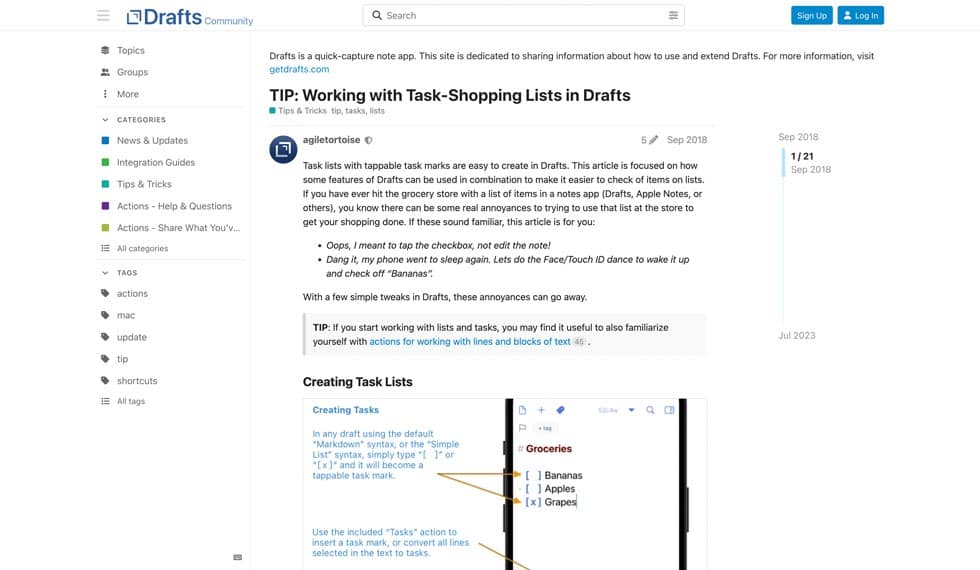
[00:34:25] Bonni: Blubrry, the podcasting service that Dave mentioned previously tells me that somewhere in the realm of 70% to 75% of you listening are listening using an iOS device, meaning an iPhone. To that end, even if you’re not entirely bought into the Mac universe, I would say Drafts stands alone on an iPhone really well. If you’re that 70% to 75% of you listening, I highly recommend you check it out. I’d like to share a feature on Draft that I want to recommend today, and it has to do with checklist. You know I’ve done entire episodes in the past on Checklist. I’m a huge fan.
Even if you’re among the 30% of you that are not on iOS, find yourself an app that will do good checklists for you. In Drafts’ case, it uses what’s called markdown, which is just a way of writing that both contains characters and words, but also formatting. You put a little dash, you put an open square bracket, a space and a closed square bracket, and you’re on your way to having a checklist. You can type it each time you add to your checklist, and you hit Enter in Drafts, it will give you a new checklist item.
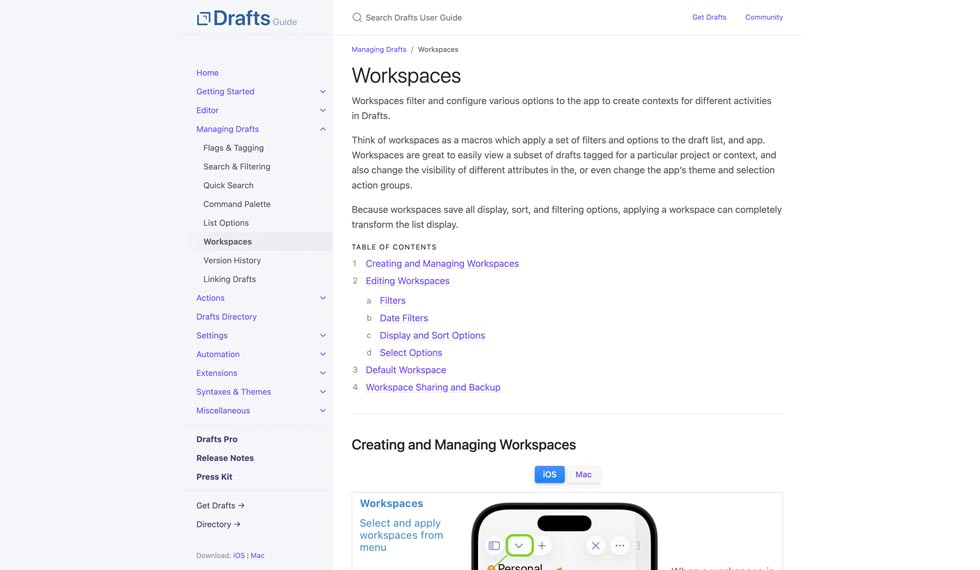
Once they are created, Dave has taught me how to create what they call a workspace. I now have a collection across all of my different drafts of just checklists. We’ve talked about in prior episodes about Dave has created Departure checklist for, “Make sure that the kids have the sweater that they’re supposed to wear on certain days at school. Make sure that they have masks, make sure they’ve got all the stuff.” We’ve got a lot of checklists going, and I love that I can have them all organized in one spot. Easy to access.
I’ve expanded my use of Drafts. I used to only use it for capture, and now Dave is kind of expanding my imagination around also using it for checklists. He helped me make a little workspace with a picture of a school bus. Now I’ve got all the departure checklists for the kids in one spot. I’m having fun with Drafts. I love it when you can get to know an app, and it can cover you for years with just the basics, and it continues giving you its goodness. Then, when an app can be both so simple, but also you can really, really dial it up to some pretty spectacular things that you can do with it.
[00:36:54] Dave: That’s romance here on the weekends here at our house, carrying strategies for organizing the drafts app, boy. There you go. Excitement.
[00:37:05] Bonni: You had no idea the Stachowiak household was so filled with romance.
[00:37:10] Dave: There we go.
[00:37:11] Bonni: Speaking of romance, I would like to both romantically and practically tell you, thank you for taking time out on a Saturday morning to make this episode of Teaching in Higher Ed possible, Dave. Thank you for being a guest once again.
[00:37:23] Dave: I am so glad to be here. Thank you for inviting me. It was so fun to talk about these tools.
[00:37:30] Bonni: Today’s episode was produced by me, Bonni Stachowiak, and it was edited by the ever-talented Andrew Kroeger. Podcast production support was provided by Sierra Smith. If you have yet to subscribe to the Teaching in Higher Ed weekly update, I would go so far as to say you are missing out. I’m going to go bold with that. Head on over to teaching in highered.com/subscribe so you can make sure and get those updates every week, which really extends the value of the podcast. Thanks so much for listening, and we’ll see you next time.
The transcript of this episode has been made possible through a financial contribution by the Association of College and University Educators (ACUE). ACUE is on a mission to ensure student success through quality instruction. In partnership with institutions of higher education nationwide, ACUE supports and credentials faculty members in the use of evidence-based teaching practices that drive student engagement, retention, and learning.
Teaching in Higher Ed transcripts are created using a combination of an automated transcription service and human beings. This text likely will not represent the precise, word-for-word conversation that was had. The accuracy of the transcripts will vary. The authoritative record of the Teaching in Higher Ed podcasts is contained in the audio file.